
Tutorial
Ask Claude About Your Ambivo Records
Connect Claude to Ambivo, then ask about your leads, deals and tasks in plain words.
Chapters
1. Connect Claude to Ambivo
You can ask Claude about your Ambivo records in plain words. For example: "Which leads came in this week?" Claude reads Ambivo as you. It sees only what you can see, and it can only read. It cannot change anything.
In this tutorial you are Sam, who runs Rivera Plumbing. You connect Claude to Ambivo once. After that, Claude can look things up for you in any chat.
You need a Claude plan that allows custom connectors. The steps are the same on claude.ai and in the Claude desktop app.
Add Ambivo to Claude
- Open Claude.
- In the menu on the left, click Plugins.
- Click Add, then Add custom connector.
- Fill in the two boxes:
| Box | What to enter |
|---|---|
| Name | Ambivo |
| MCP server URL | https://api.ambivo.com/mcp |
- Click Continue.
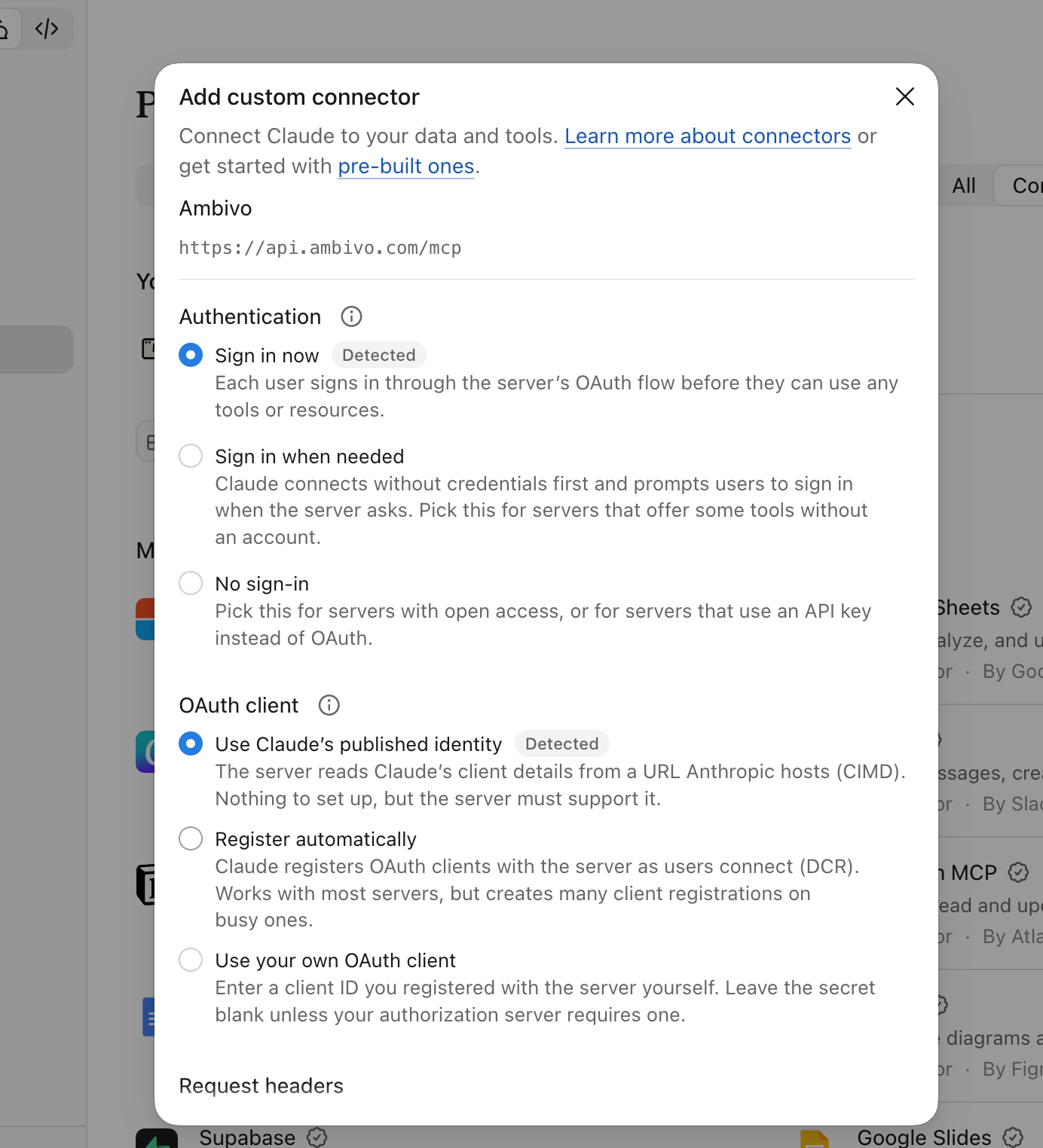
Claude shows how it will sign in. It has already picked the right options: Sign in now and Use Claude's published identity. Leave them as they are and click Add.
Sign in to Ambivo
- Click Connect. Your web browser opens on Ambivo.
- If Ambivo asks you to sign in, sign in as yourself.
If your browser is already signed in to Ambivo, you go straight to the next page.
Choose what Claude may read
Ambivo shows who Claude will read as. Check the email and the company name.
If it shows someone else, click Sign in as someone else. This signs you out of Ambivo in this browser. Then sign in as yourself.
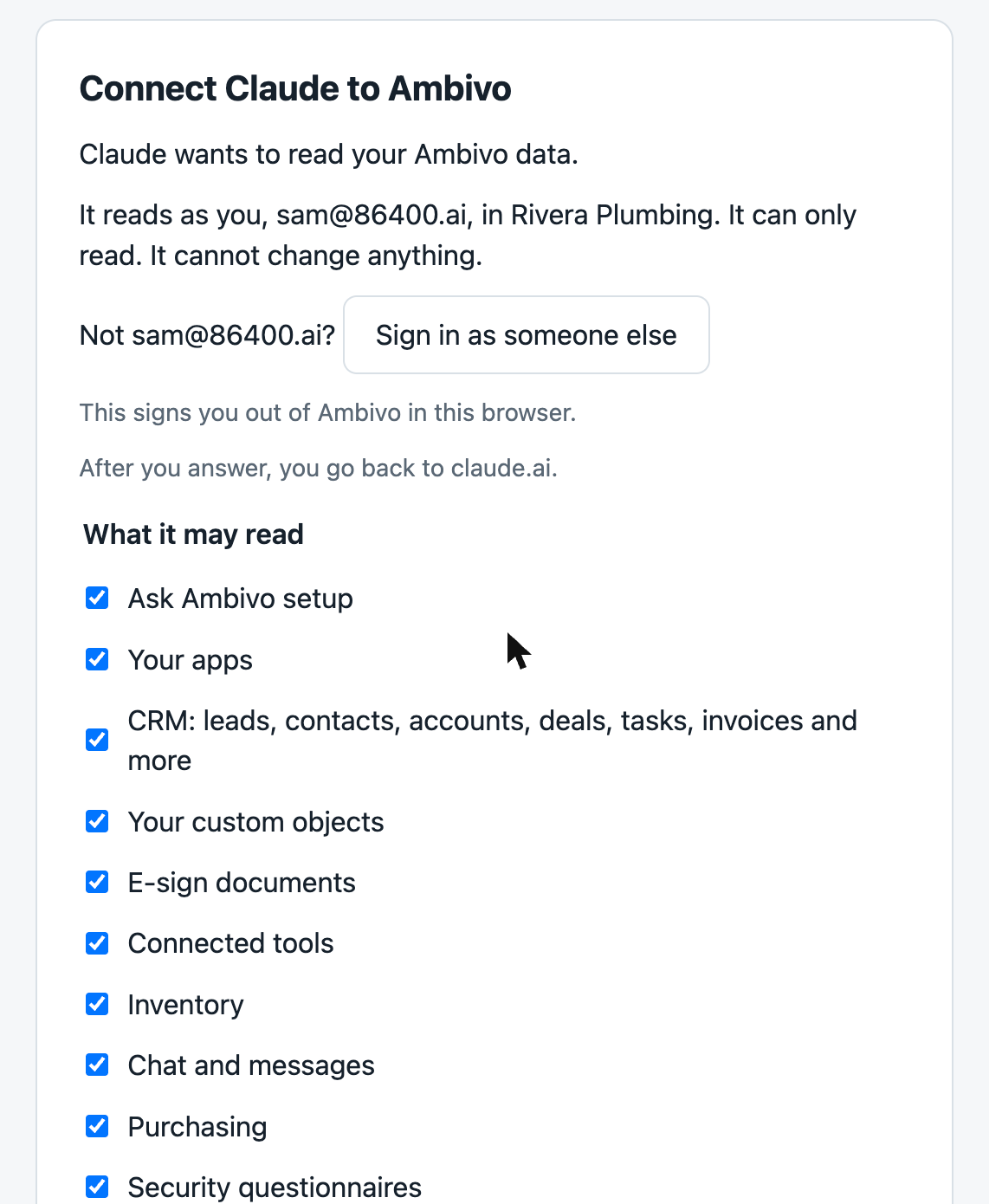
Under What it may read, every part of Ambivo is ticked. For example: CRM, Inventory, Purchasing, Workflows, and Workforce shifts and time.
Untick anything you want to keep from Claude. Claude can never read more than your own role allows.
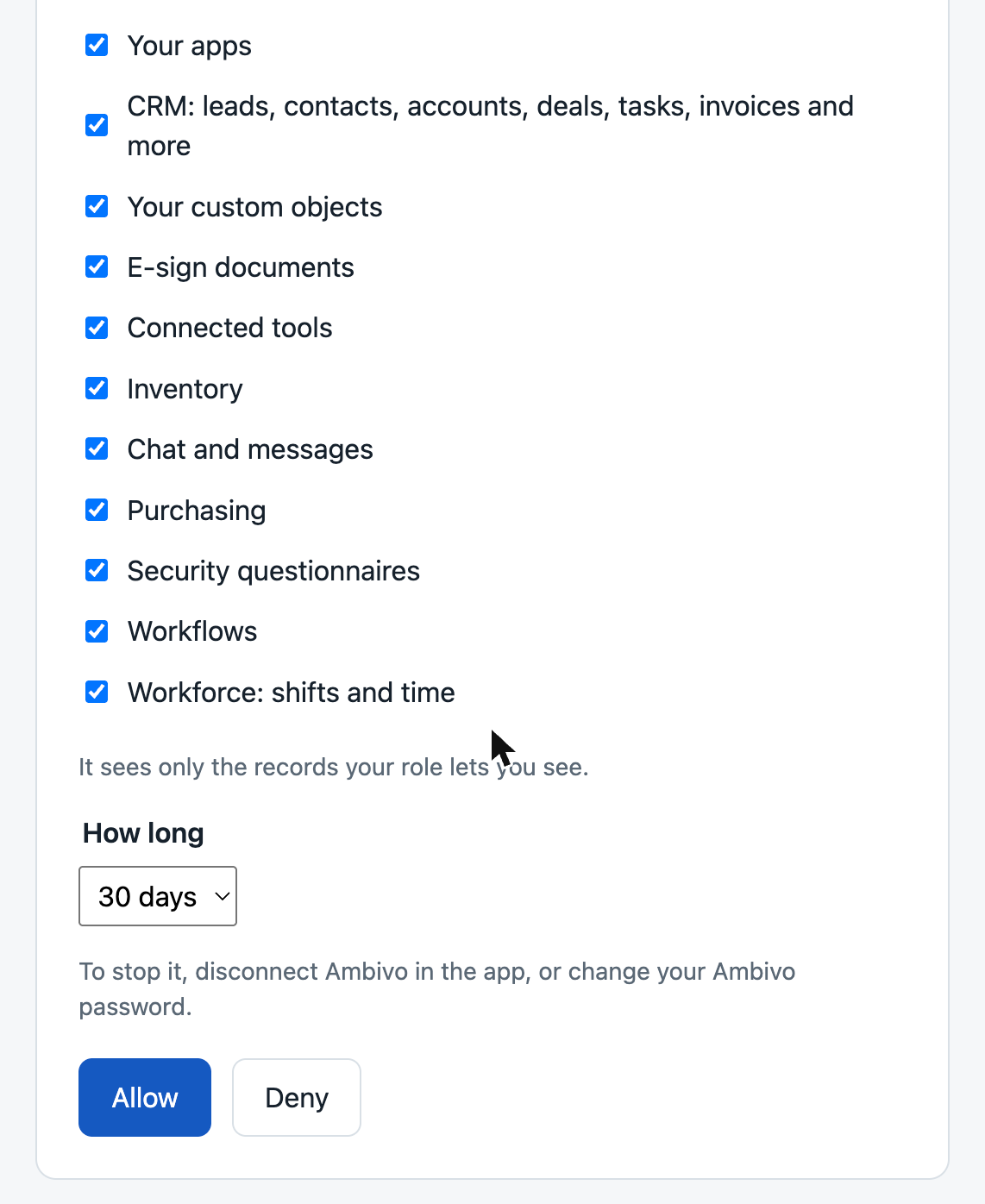
Under How long, pick when the connection ends: 7, 30, 60 or 90 days. Then click Allow.
Go back to Claude
On claude.ai, you go straight back to Claude. In the desktop app, your browser shows Finish in the desktop app. Click Open desktop app, then close the browser tab.
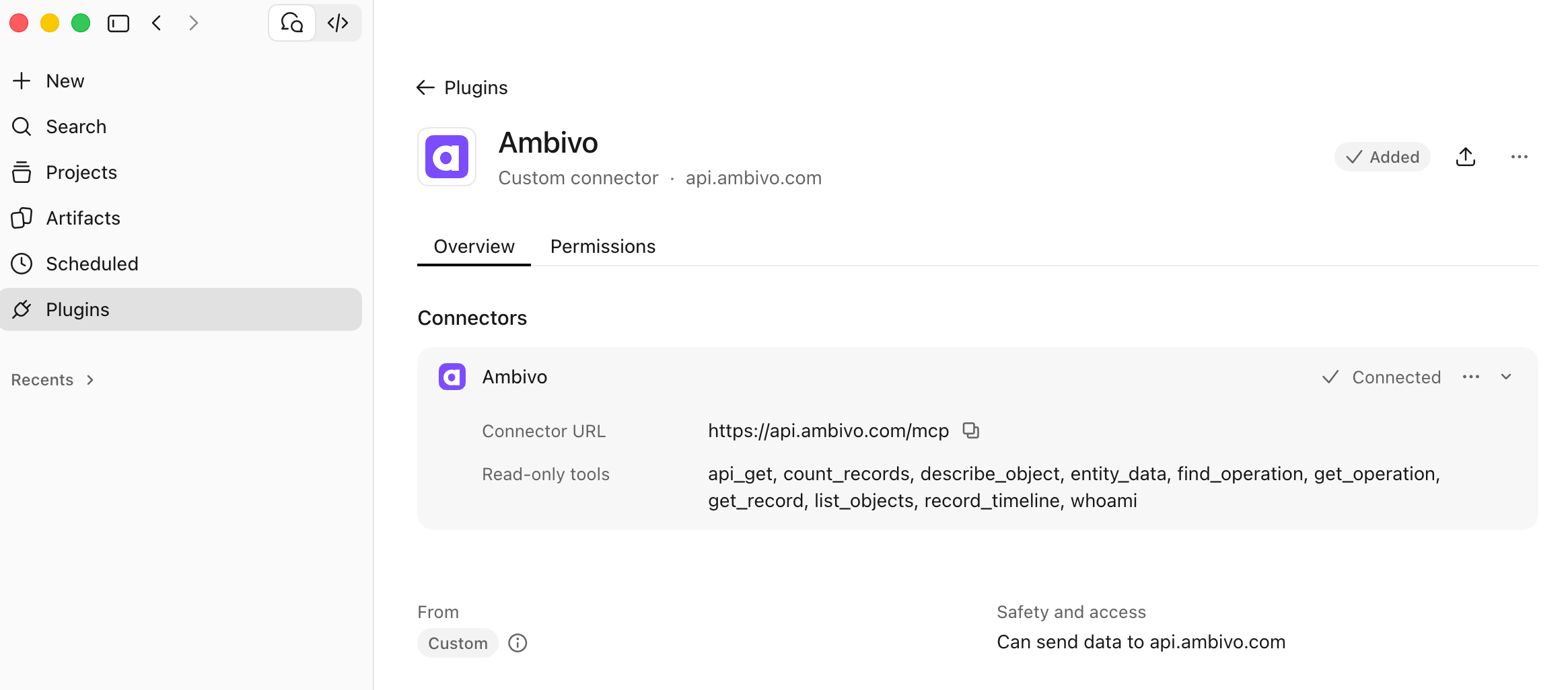
In Claude, Ambivo now shows Connected, with its read-only tools.
Good to know
- Each person connects for themselves. Claude then reads as that person.
- To change what Claude may read, connect again and tick different boxes.
2. Ask About Your Records
Claude now has Ambivo. Start a new chat and ask in plain words.
Ask a question
- In Claude, click New.
- Type a question about your records. For example: Show me my open leads.
- Press Enter.
Claude shows Used Ambivo while it looks. Then it answers from your records.
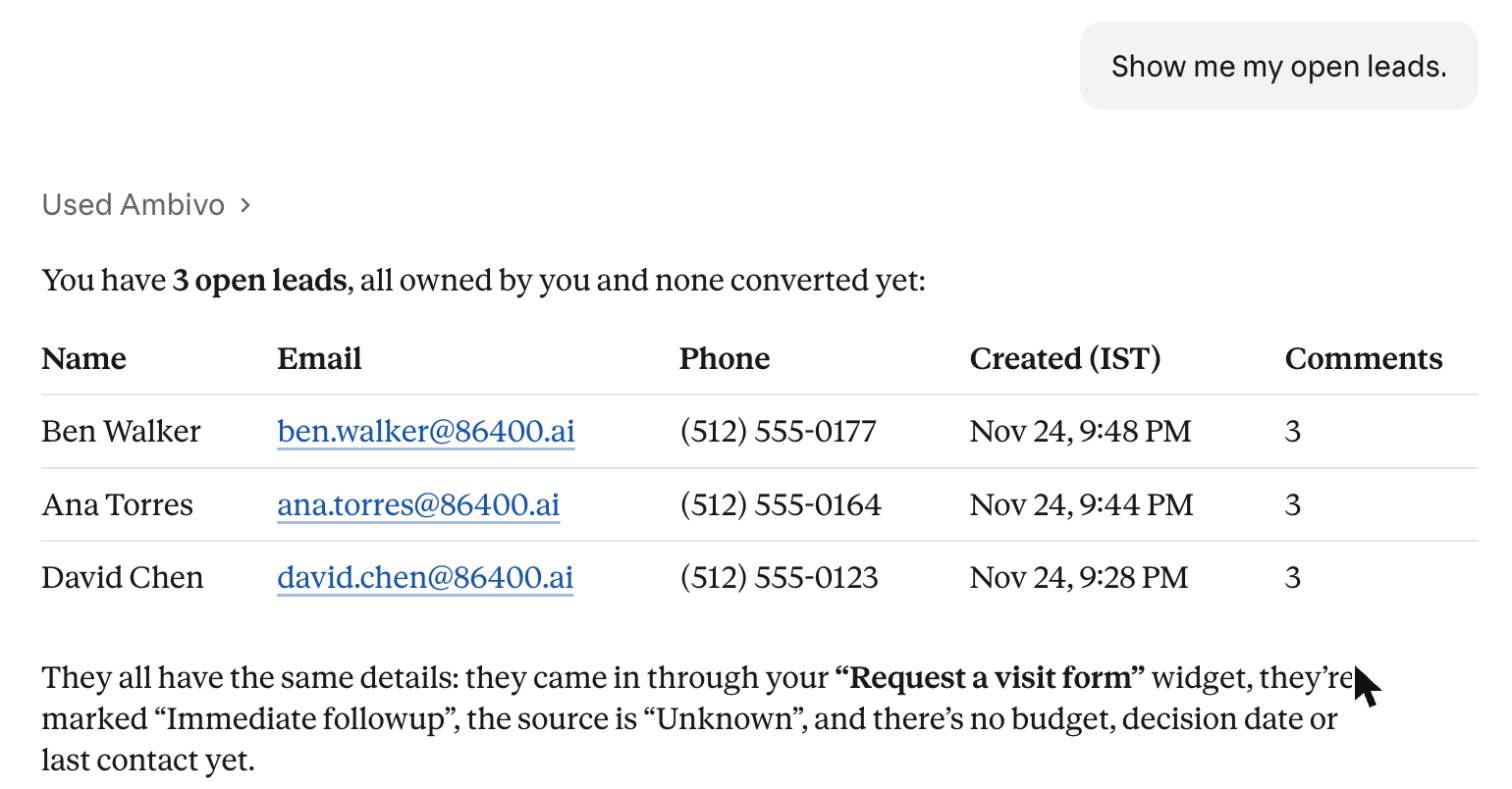
Click Used Ambivo to see what Claude looked up.
Things to ask
| You ask | Claude reads |
|---|---|
| Which leads came in this week? | Your leads, by date |
| What do I know about Ana Torres? | Her record, notes and tasks |
| Which deals are close to closing? | Your deals and their stages |
| What tasks are due tomorrow? | Your tasks |
| Which products do we sell? | Your product list |
Ask follow-up questions in the same chat. For example: Write a short email to her about the quote. Claude writes the email in the chat. It does not send it. If Ambivo has no quote yet, Claude leaves blanks for you to fill in.
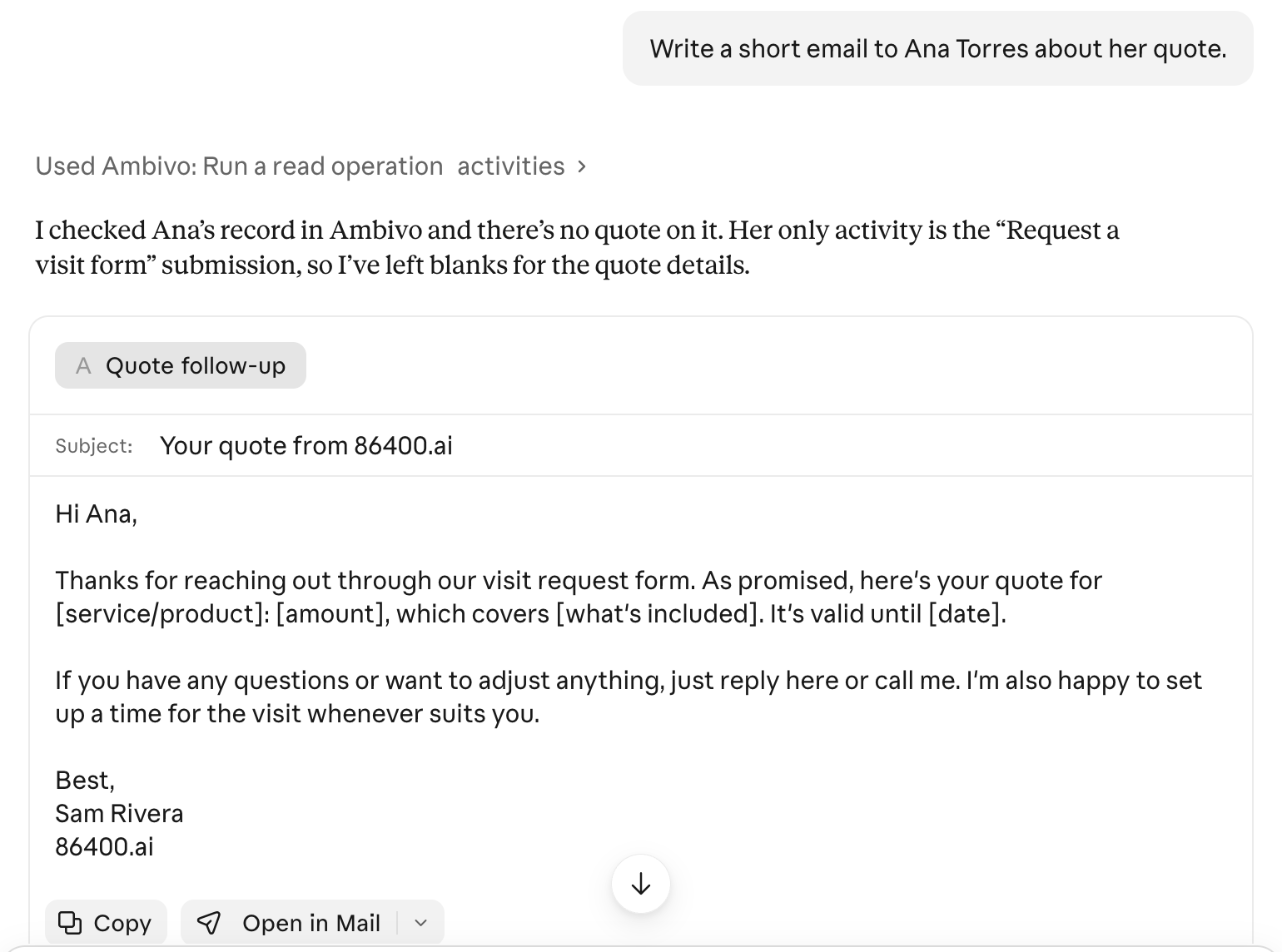
Good to know
- Claude reads at most 200 records at a time. For more, ask for the next page, or narrow the question.
- Claude reads what is in Ambivo now. Its answers stay in your Claude chat, like any other chat.
3. What Claude Can and Cannot Do
Claude reads Ambivo as you, with your role. These rules always apply.
Claude can
- Read the records your role lets you read.
- Read only the apps you ticked when you connected.
- Work out where in Ambivo the answer to a question is.
Claude cannot
- Add, change or delete anything. It can only read.
- Read records your role cannot read.
- Read an app you did not tick. It answers that it has no access.
- Read secure chats. Messages in a chat set to Secure stay private.
- Run Ambivo's exports and downloads. It can write what it read into a file in the chat.
Stop Claude reading Ambivo
- In Claude, open Plugins, then Ambivo, and disconnect it.
- Or change your Ambivo password. This stops every AI assistant you connected.
The connection also ends on its own after the time you picked.
For company admins
An admin can turn off AI assistant access for the whole company. Ask Ambivo support to do this. Every person's connection then stops at once.