
Tutorial
Inventory Tutorial
Set up a store or café in Ambivo Inventory, bring stock in, use it, and see what to reorder.
Chapters
- 1. Sign In and Find Your Way
- 2. Set Up Where Stock Lives
- 3. Add an Item
- 4. Bring Stock In
- 5. Move and Use Stock
- 6. What to Order and What It Is Worth
1. Sign In and Find Your Way
This tutorial walks you through one week at a café. You add a fridge and a new item. You bring in a delivery, move some to the counter and record what you used. Then you see what to reorder and what your stock is worth.
Our example is the Downtown Cafe. The new item is Chai Concentrate, bought by the litre.
Sign in
- Go to inventory.ambivo.com.
- Sign in with your email and password.
- If you are asked for a code, check your email and type it in.
The first page
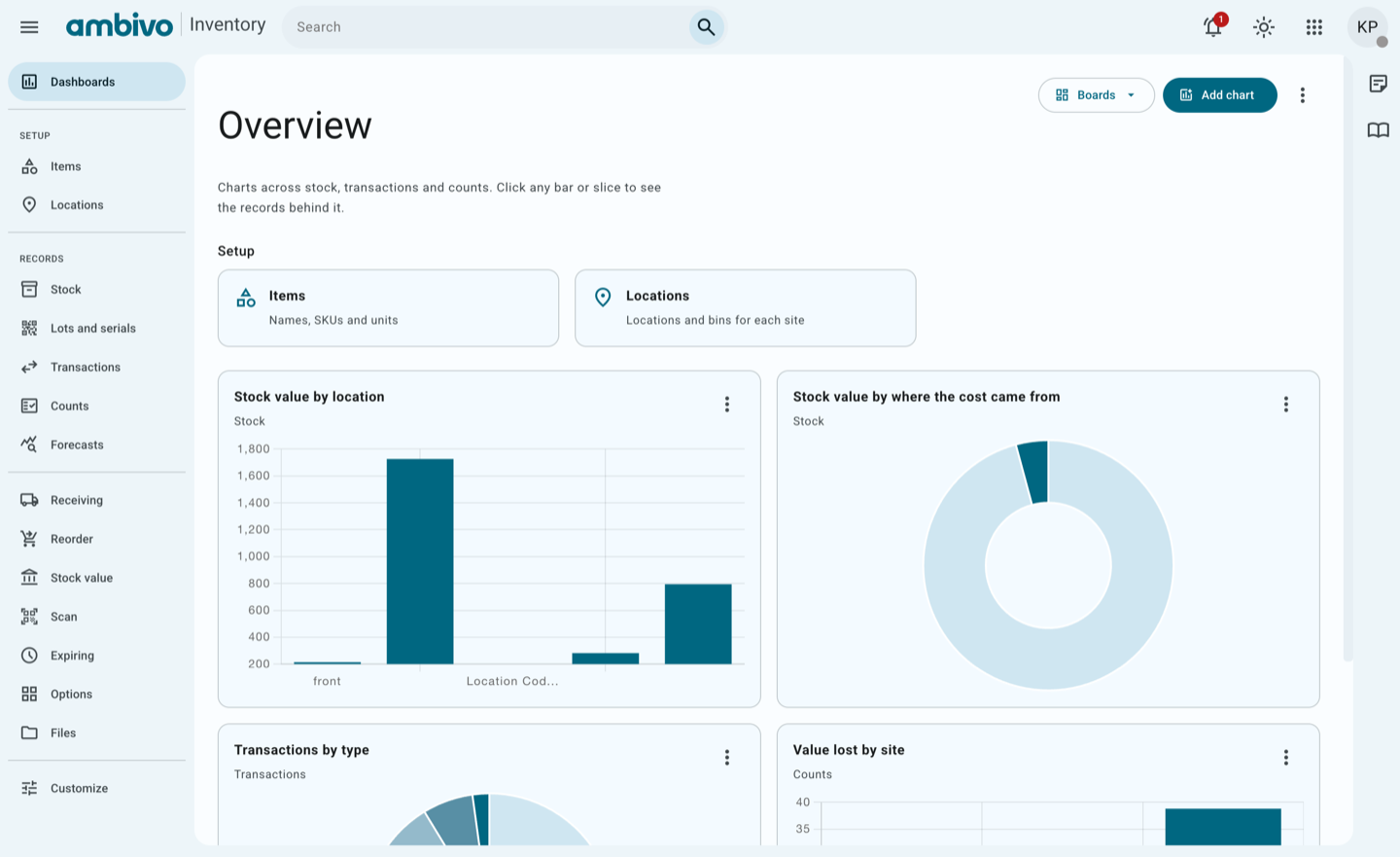
You land on Dashboards. The charts show stock value, transactions and counts. Click any bar to see the records behind it.
The menu
The menu on the left has three parts.
| Part | What is in it |
|---|---|
| Setup | Items and Locations. You set these up once. |
| Records | Stock, Transactions, Counts and more. These fill up as you work. |
| Tools | Receiving, Reorder, Stock value, Scan and Expiring. |
What you see depends on your role. If a page in this tutorial is missing from your menu, ask your admin.
Good to know
- The book icon on the right edge of the page opens the full user guide.
- Every page has a Refresh button. Use it after someone else makes a change.
Next: 2. Set Up Where Stock Lives
2. Set Up Where Stock Lives
A site is a shop, café or warehouse. Your admin adds sites. A location is a place inside a site, like a kitchen or a fridge. You add locations here.
In our example, the café has a new walk-in fridge. We add it as a location.
Open your site
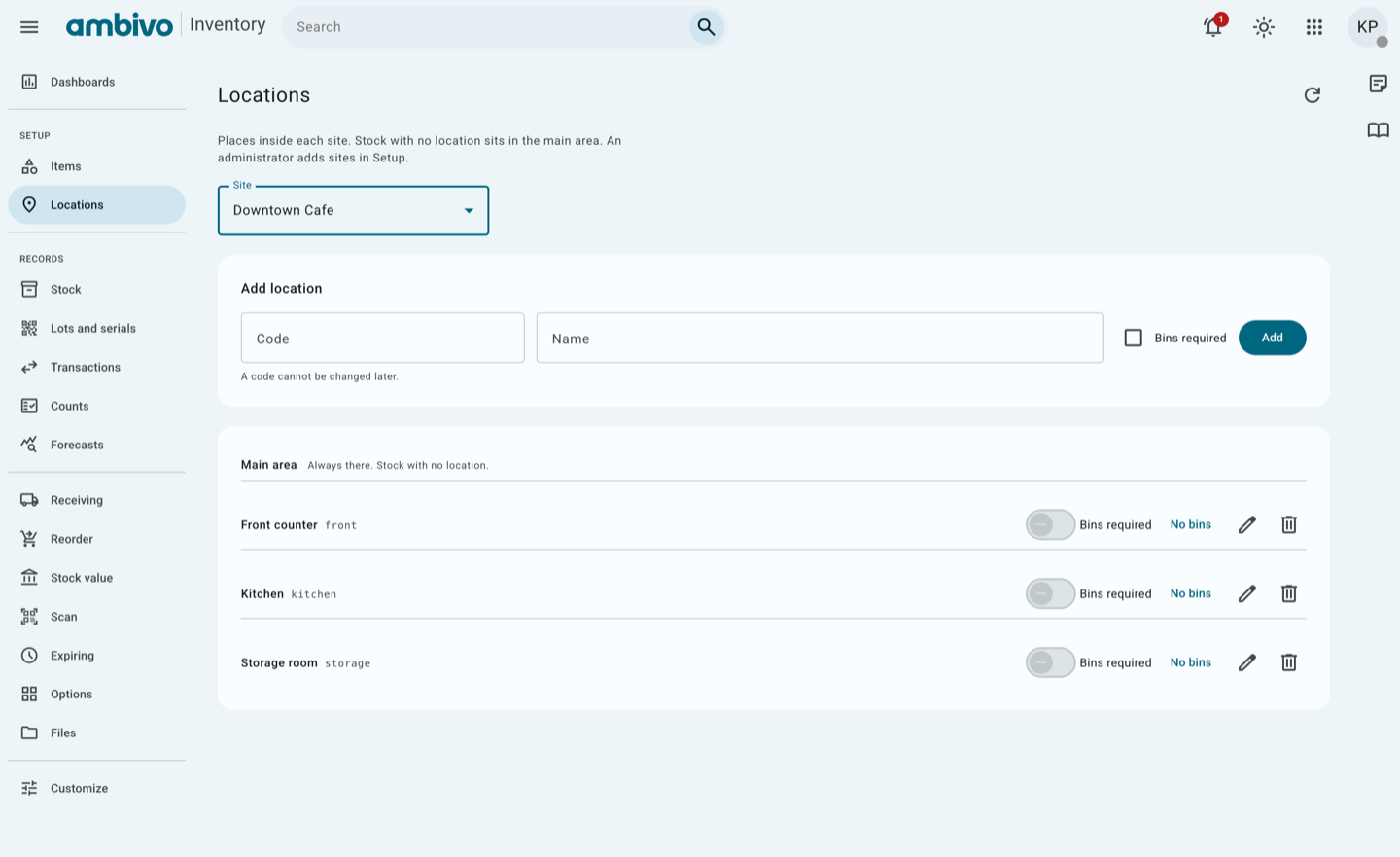
- In the menu, click Locations.
- In Site, choose your site. We choose Downtown Cafe.
You see the locations this site already has. Main area is always there. Stock with no location goes there.
Add a location
- Under Add location, fill in the two boxes:
| Field | Our example | Notes |
|---|---|---|
| Code | fridge | A short name. It cannot be changed later. |
| Name | Walk-in fridge | The name people see. |
- Leave Bins required off. Turn it on only if every shelf in this place has its own number.
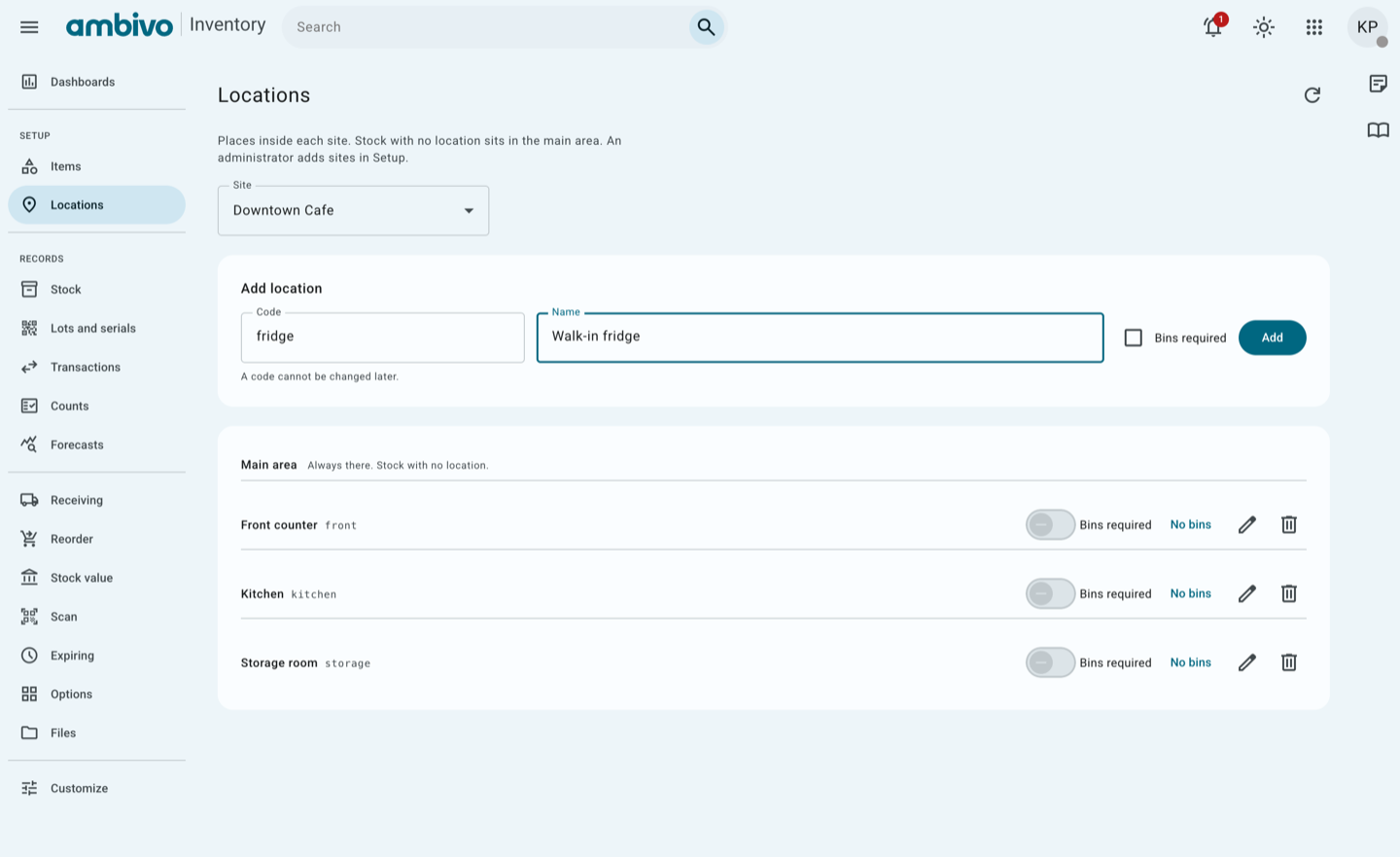
- Click Add.
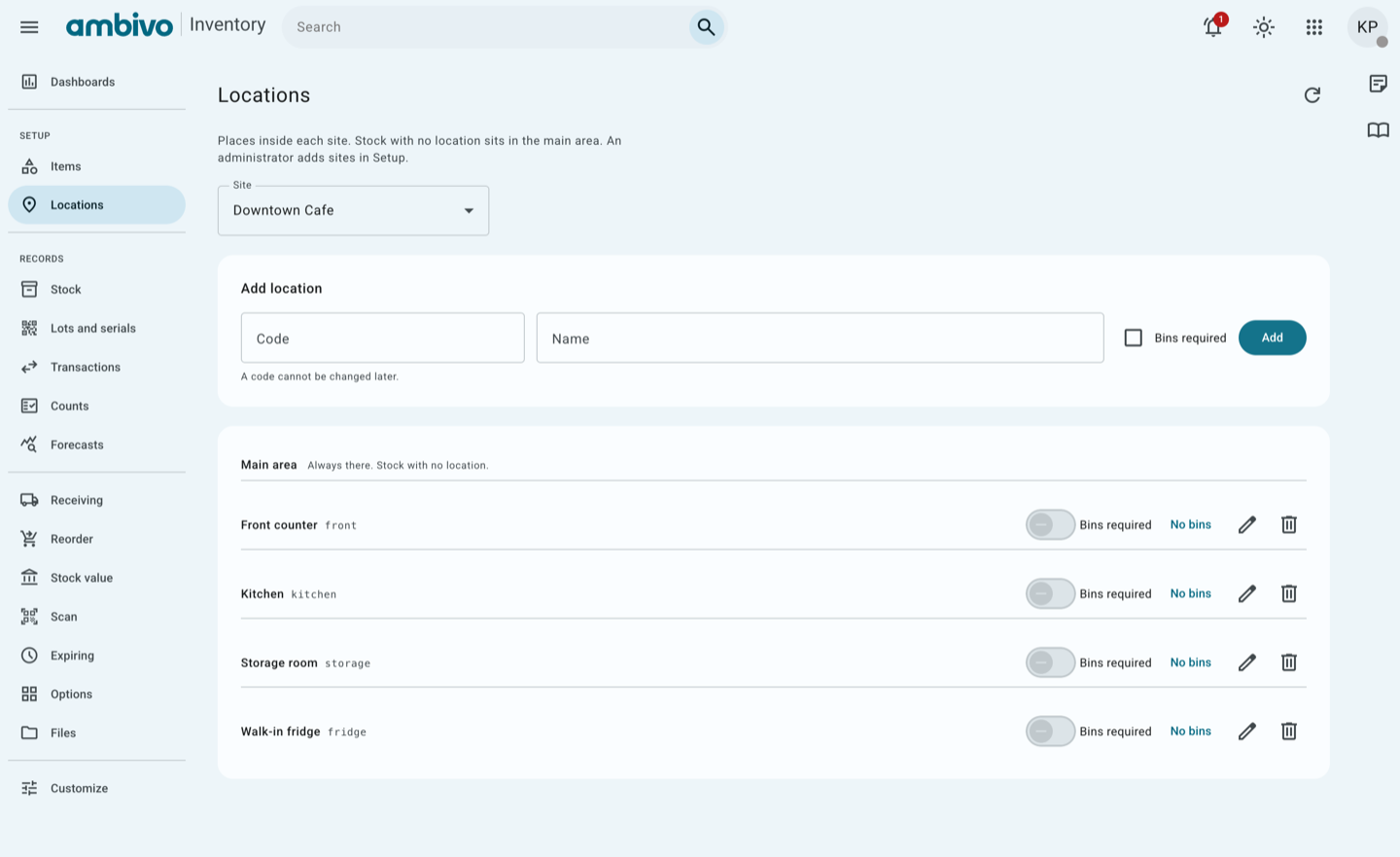
The new location is in the list.
Good to know
- You can rename a location with the pencil icon. The code stays the same.
- A location that has stock cannot be deleted.
Next: 3. Add an Item
3. Add an Item
An item is one thing you keep in stock. Each item has a name, a unit and a cost.
In our example, the café starts selling chai lattes. We add Chai Concentrate. It is bought and used by the litre, at 5.50 a litre.
Check the list first
- In the menu, click Items.
- Type the first letters of the name in Item name or SKU.
If the item is already there, skip to Chapter 4.
Make a new item
- Click New item.
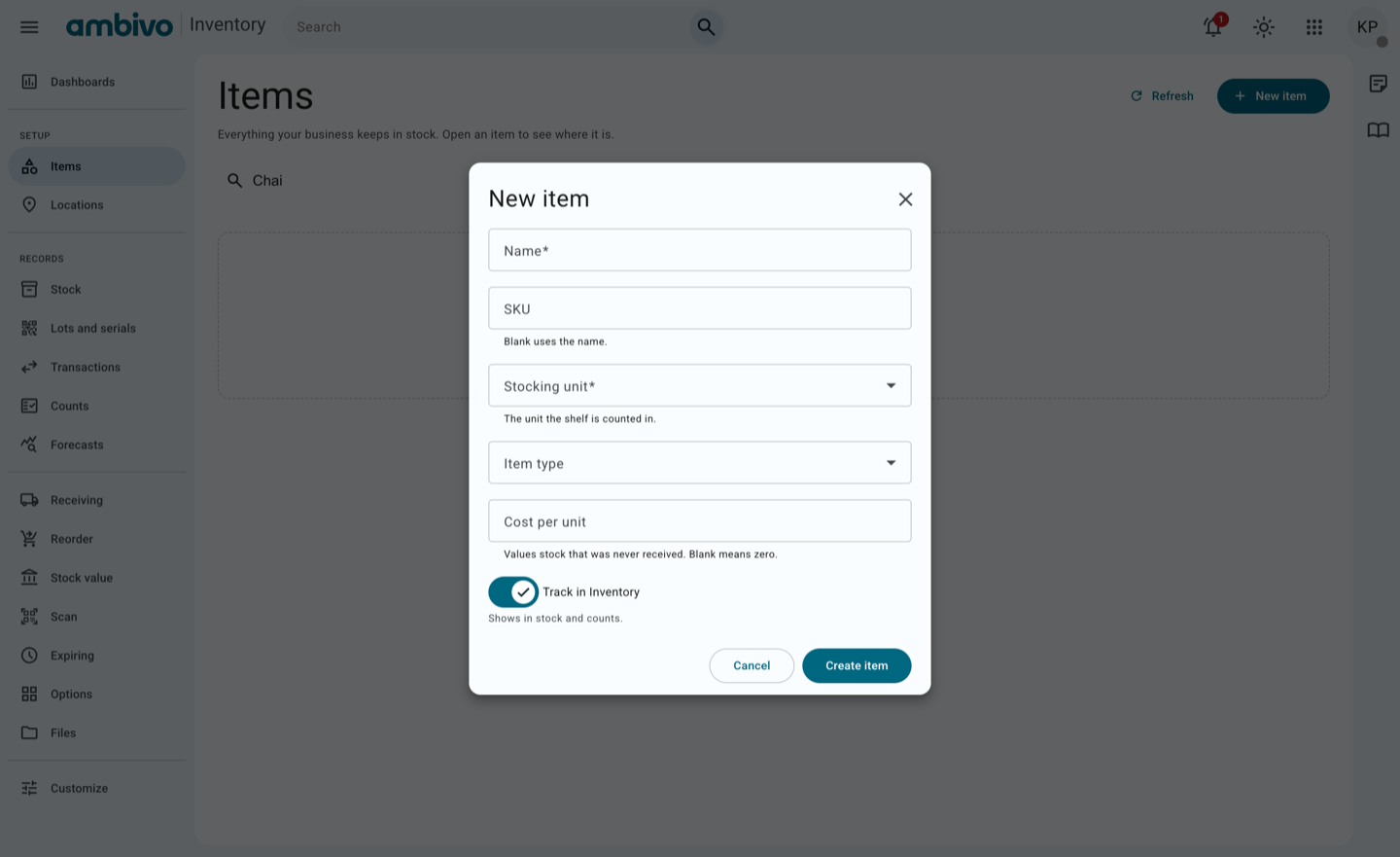
- Fill in the form:
| Field | Our example | Notes |
|---|---|---|
| Name | Chai Concentrate | Staff see this name. |
| SKU | CHAI-CON | Optional. Your own short code. Blank uses the name. |
| Stocking unit | Litre | The unit you count the shelf in. |
| Item type | Measured (bulk) | For liquids and powders. Use Discrete (counted) for things you count one by one. |
| Cost per l | 5.50 | What one unit costs you. |
| Track in Inventory | On | Leave it on, so the item shows in stock and counts. |
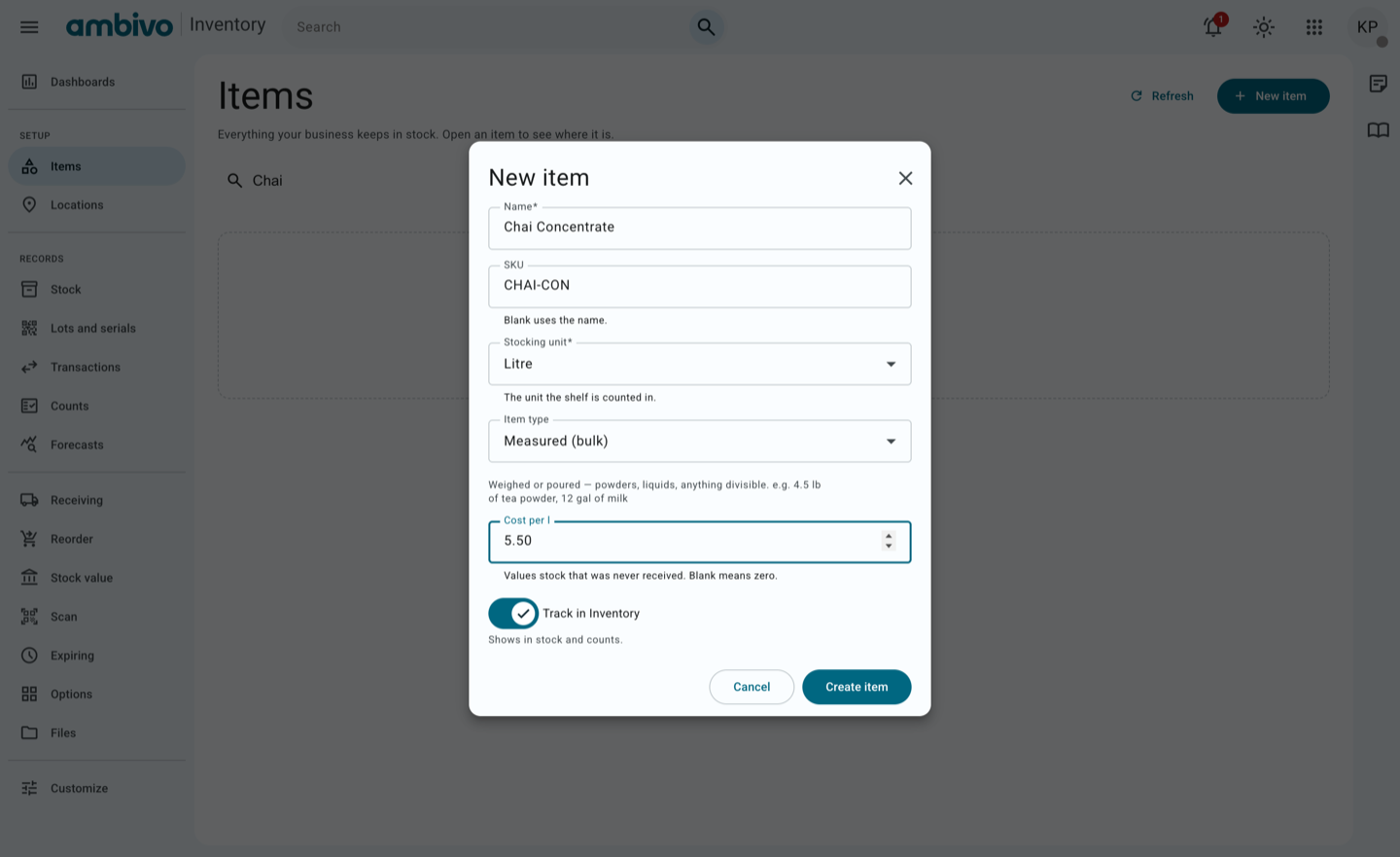
- Click Create item.
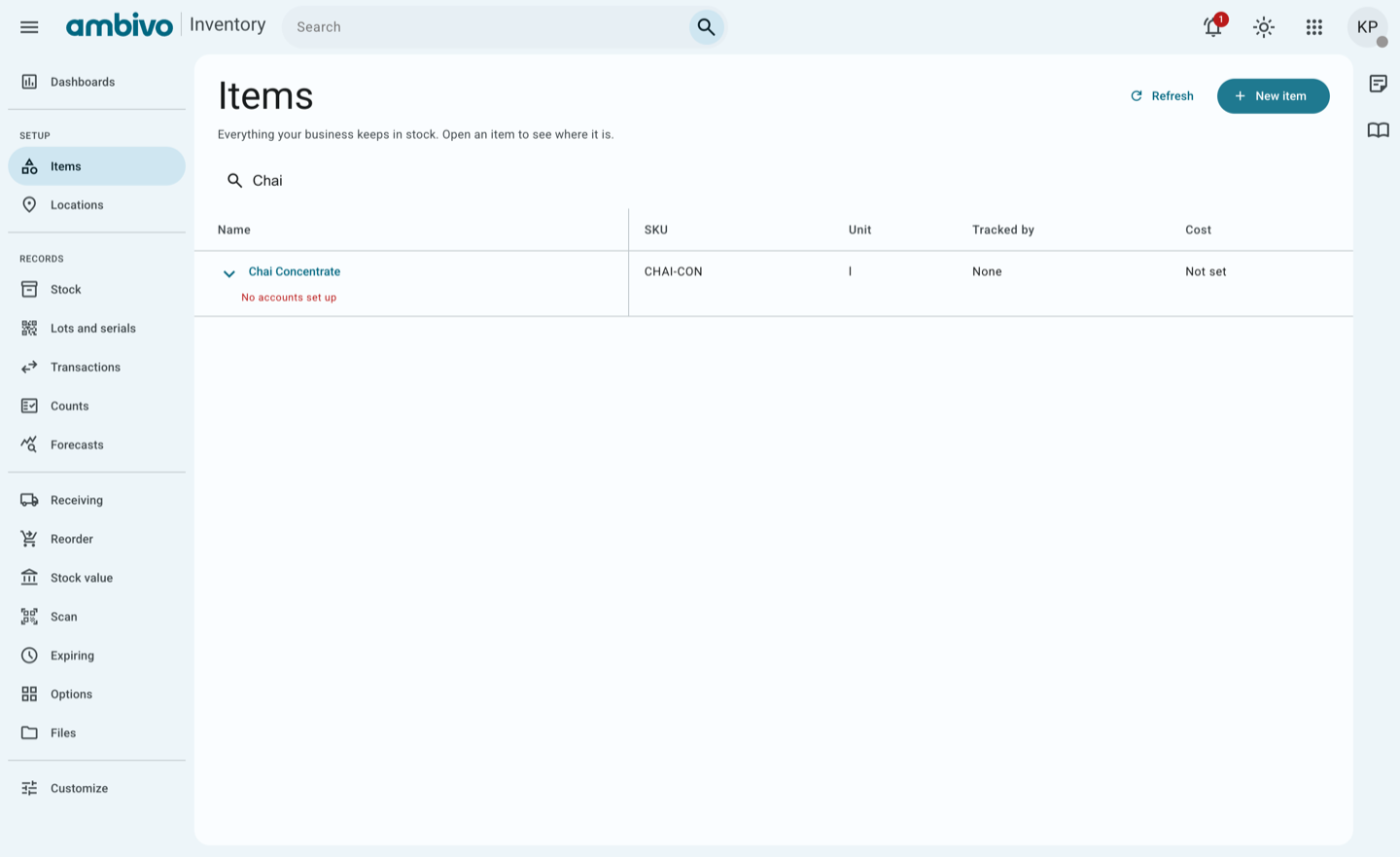
The new item is in the list, with its unit and cost.
Good to know
- Click an item to see where it is in stock. A new item has no stock until you record a delivery.
- To change the cost later, open the item and click Update cost.
- No accounts set up means this item's transactions are not sent to accounting. A manager can add accounts later.
Next: 4. Bring Stock In
4. Bring Stock In
Stock goes up when a delivery comes in. You record it as a receipt.
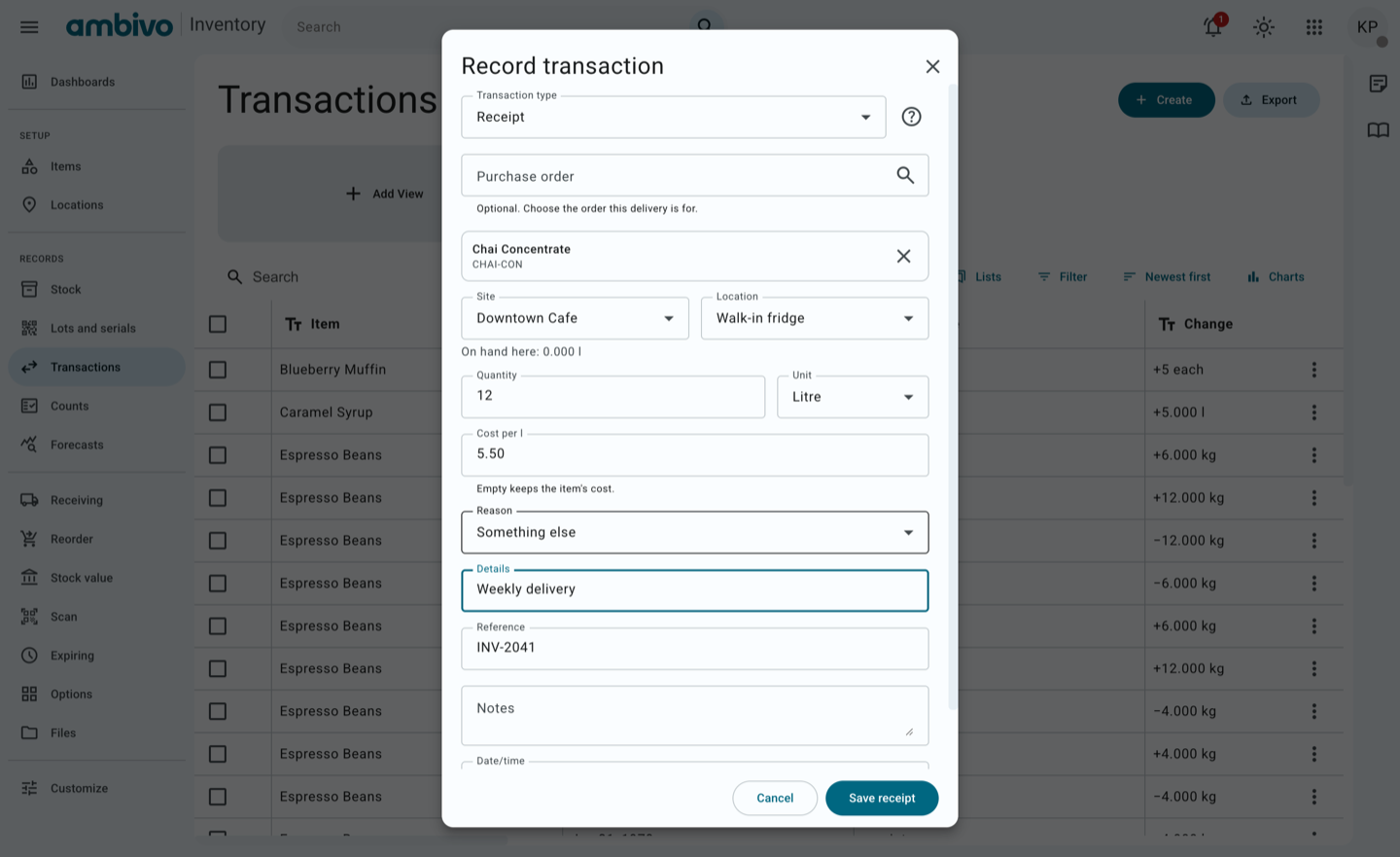
In our example, 12 litres of Chai Concentrate arrive. They go into the walk-in fridge. The supplier's invoice is INV-2041.
Record the delivery
- In the menu, click Transactions.
- Click Create. The Record transaction form opens.
- In Transaction type, leave Receipt.
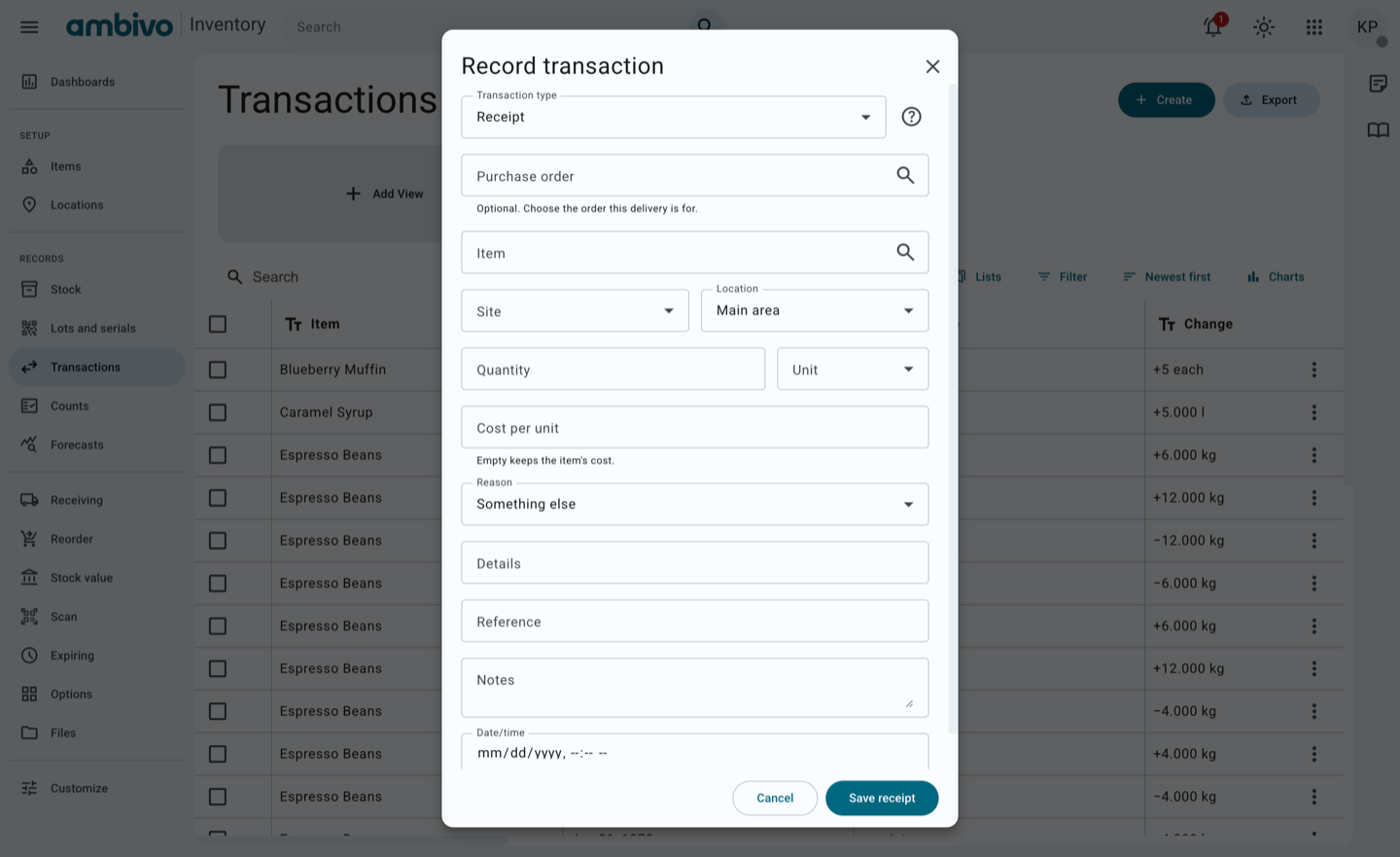
- Fill in the form:
| Field | Our example | Notes |
|---|---|---|
| Purchase order | (blank) | Optional. Choose the order if this delivery has one. |
| Item | Chai Concentrate | Type the first letters, then pick it. |
| Site | Downtown Cafe | |
| Location | Walk-in fridge | On hand here shows how much is there now. |
| Quantity | 12 | |
| Unit | Litre | Filled in from the item. |
| Cost per l | 5.50 | Blank uses the item's cost. |
| Details | Weekly delivery | Optional. |
| Reference | INV-2041 | Optional. The invoice or delivery note number. |
| Date/time | (blank) | Blank means now. |
- Click Save receipt.
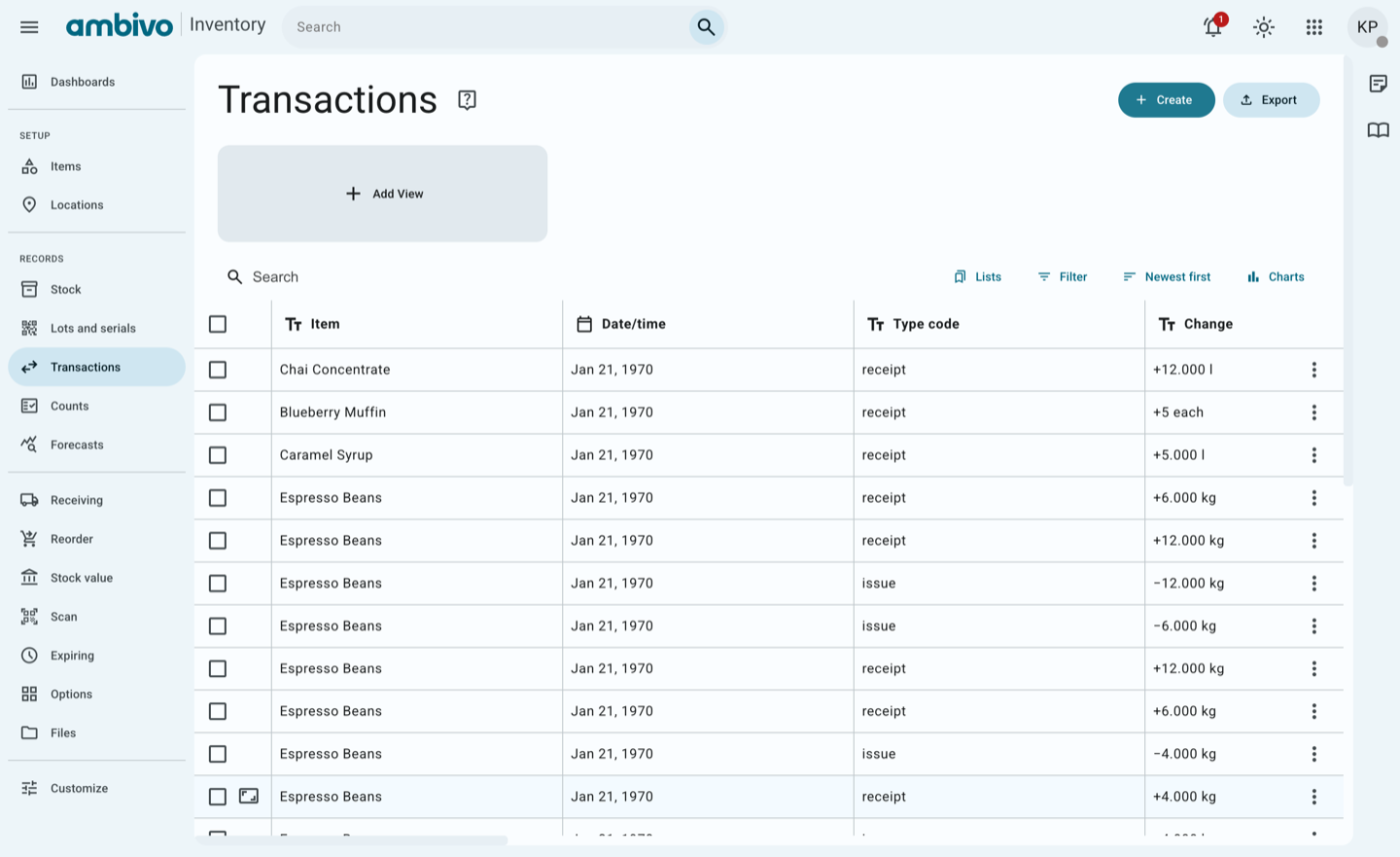
The receipt is at the top of the list, with +12.000 l.
Good to know
- A transaction cannot be changed or deleted. To fix a mistake, record another one that puts it right.
- If you press Save receipt twice on a slow connection, only one receipt is saved.
- Check Transactions before you enter a delivery, so you do not enter it twice.
Next: 5. Move and Use Stock
5. Move and Use Stock
Stock moves between places, and it gets used. You record both as transactions.
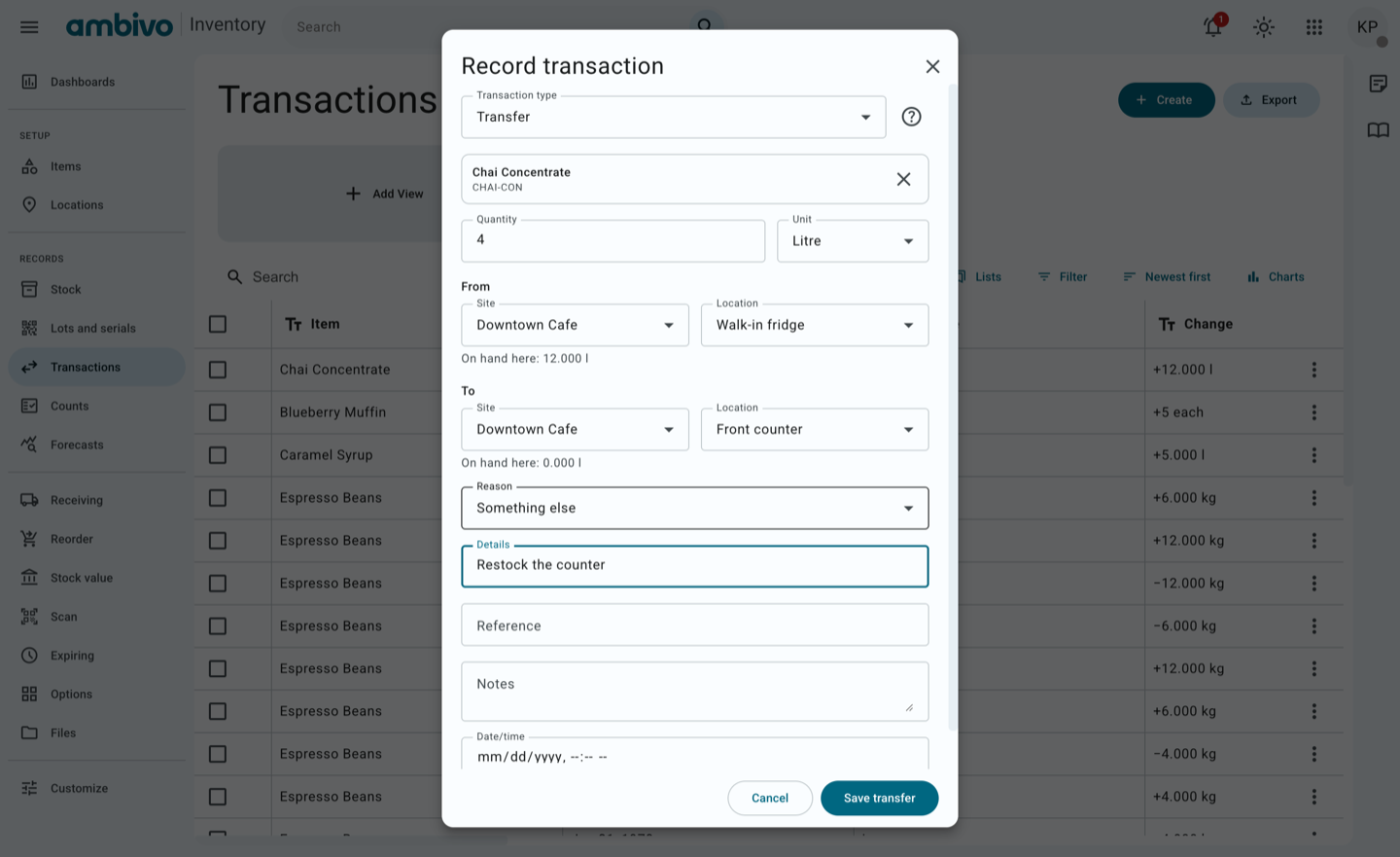
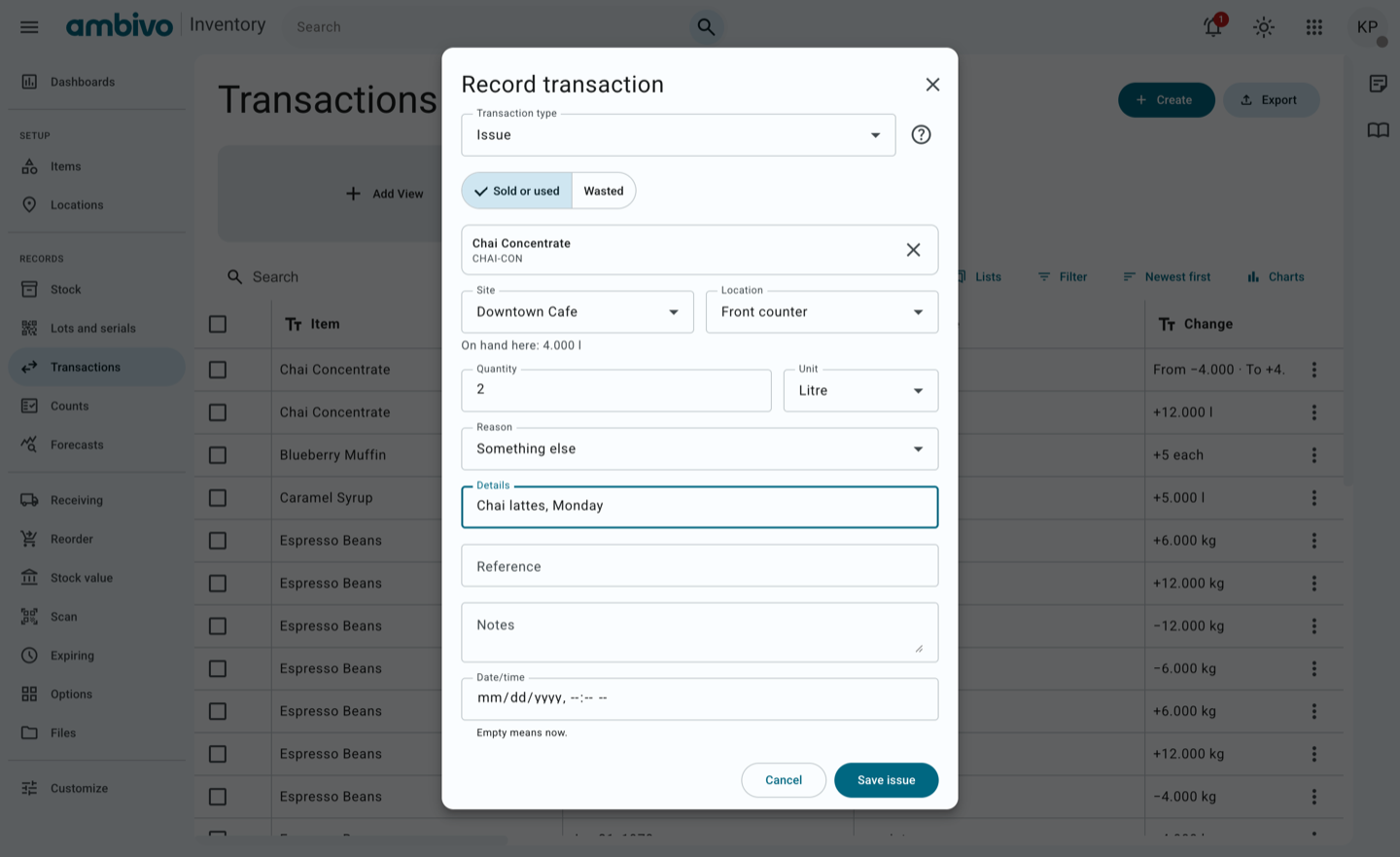
In our example, 4 litres go from the fridge to the front counter. On Monday, 2 litres are used for chai lattes.
Move stock: a transfer
- In Transactions, click Create.
- In Transaction type, choose Transfer.
- Fill in the form:
| Field | Our example | Notes |
|---|---|---|
| Item | Chai Concentrate | |
| Quantity | 4 | |
| From: Site, Location | Downtown Cafe, Walk-in fridge | Filled in from where the item has stock. |
| To: Site, Location | Downtown Cafe, Front counter | |
| Details | Restock the counter | Optional. |
- Click Save transfer.
Record what was used: an issue
- Click Create again.
- In Transaction type, choose Issue.
- Choose Sold or used. Choose Wasted for stock that was thrown away.
- Fill in the form:
| Field | Our example | Notes |
|---|---|---|
| Item | Chai Concentrate | |
| Site, Location | Downtown Cafe, Front counter | On hand here shows 4.000 l. |
| Quantity | 2 | |
| Details | Chai lattes, Monday | Optional. |
- Click Save issue.
Check the stock
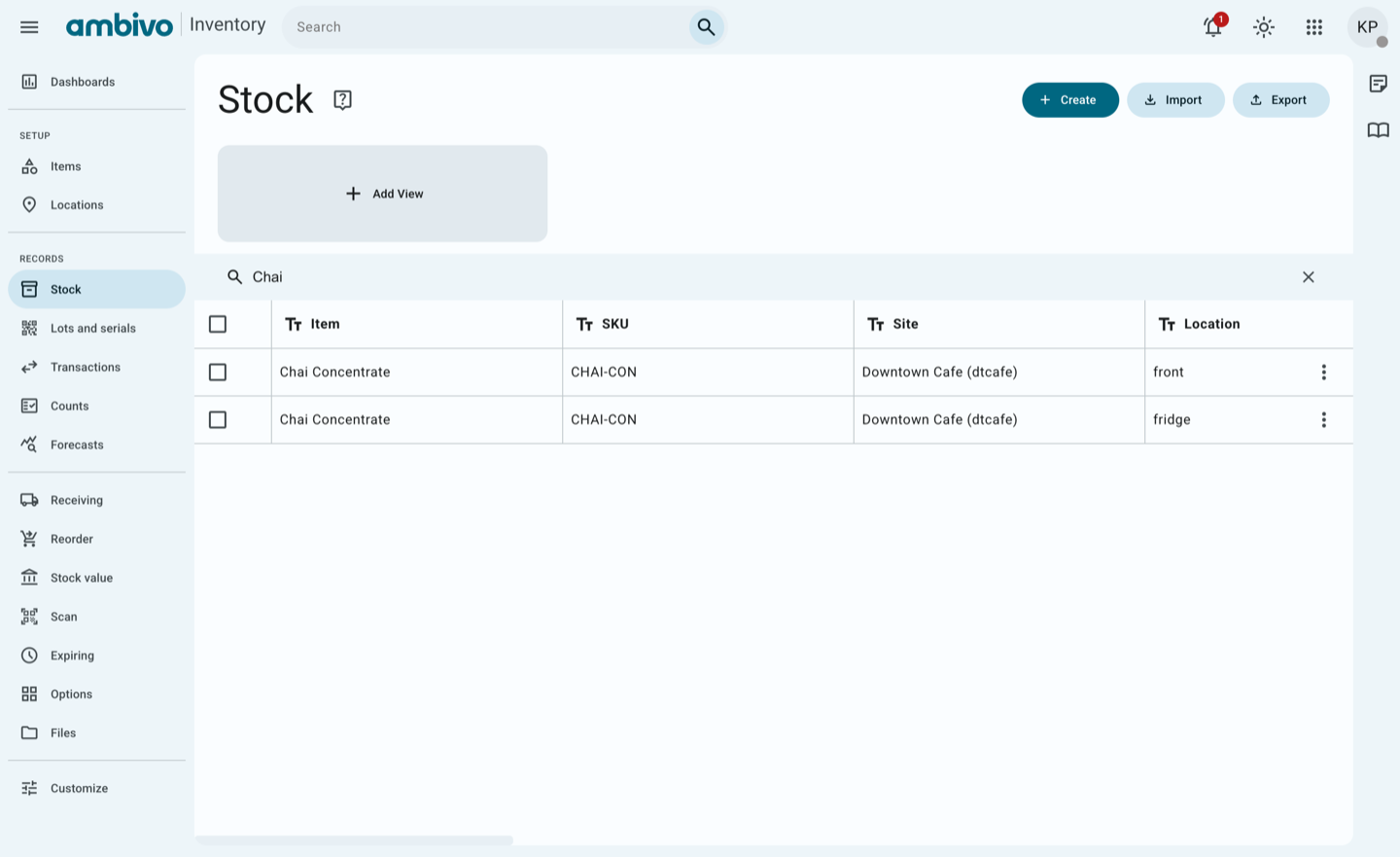
- In the menu, click Stock.
- Type Chai in Search.
You see one line for each place. The fridge has 8 litres. The front counter has 2.
Good to know
- Value is the quantity times the cost. 8 litres at 5.50 is 44.
- If more goes out than came in, the stock goes below zero. Find the missing delivery and record it.
Next: 6. What to Order and What It Is Worth
6. What to Order and What It Is Worth
Two pages answer two questions. Reorder tells you what to order, and by when. Stock value tells you what your stock is worth today.
What to order
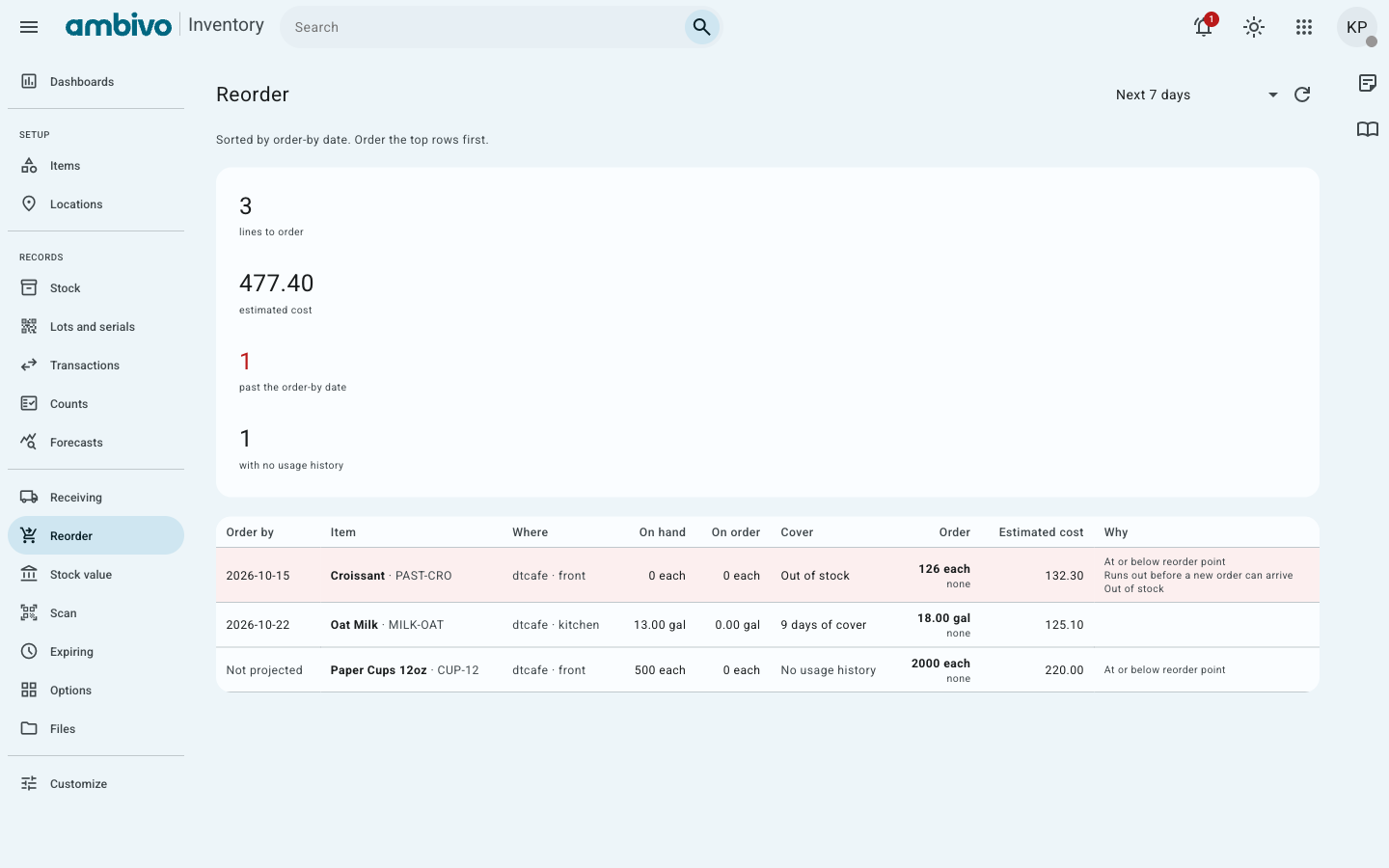
In the menu, click Reorder.
The list is sorted by Order by, the last day to place the order. Order the top rows first.
| Column | What it means |
|---|---|
| Order by | Order by this date, or you run out before the delivery arrives. |
| On hand | What you have now. |
| On order | What is already ordered and not yet delivered. |
| Cover | How many days the stock lasts at the usual rate. |
| Order | How much to order. |
| Why | Why the line is on the list, for example At or below reorder point. |
An item shows here only when it has a reorder point. Set it on the Stock page: open the line and fill in Reorder point and Reorder quantity.
What it is worth
In the menu, click Stock value.
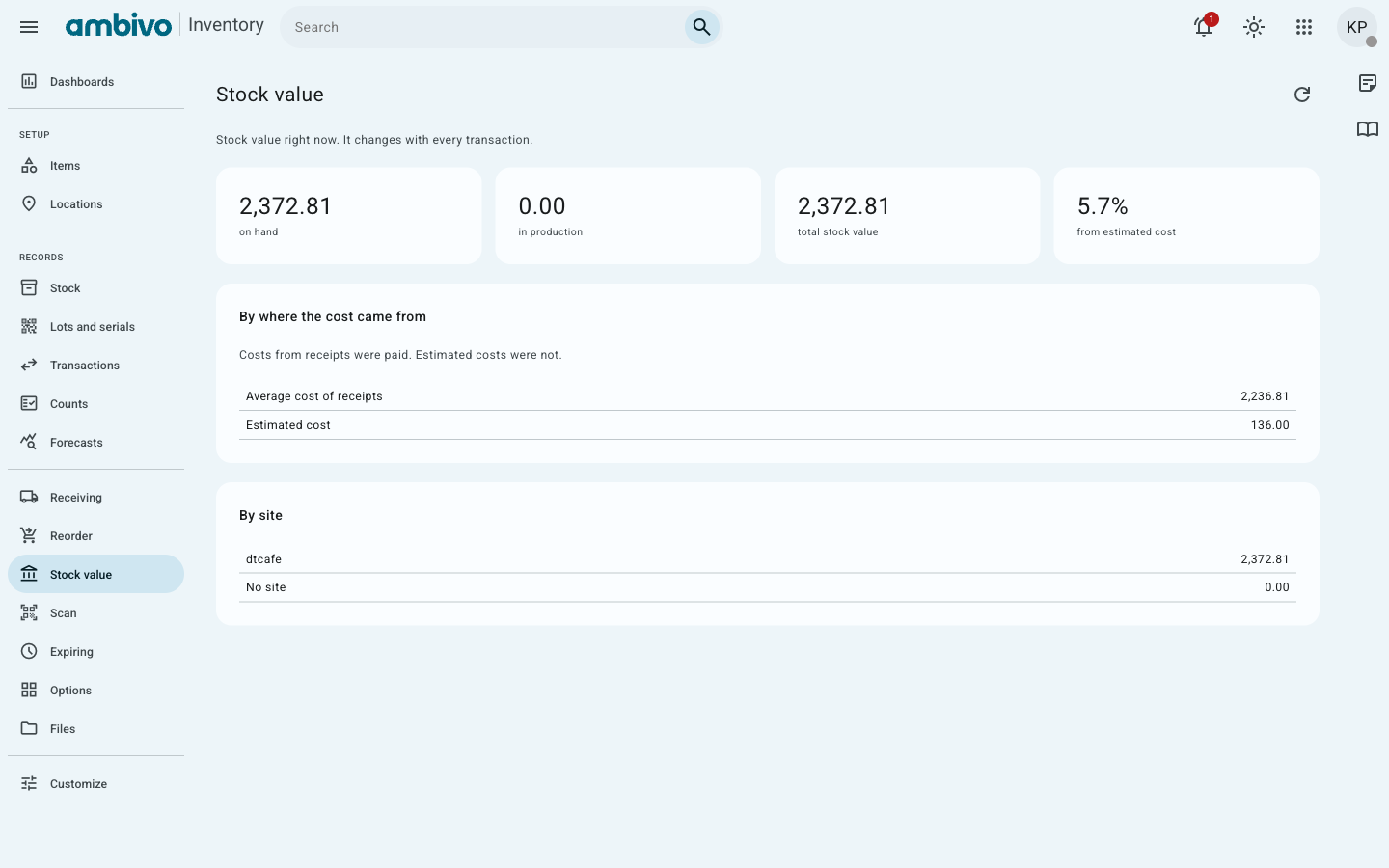
- Total stock value is everything you hold, at cost.
- From estimated cost is the part valued at an item's own cost. The rest comes from real deliveries.
- By site splits the total by shop.
- Below zero shows up when more went out of a line than came in. Each such line makes the total wrong. Find the missing delivery, or record an adjustment.
Look up one item fast
In the menu, click Scan. Scan a barcode, or type a SKU or lot number. Then click Look up.
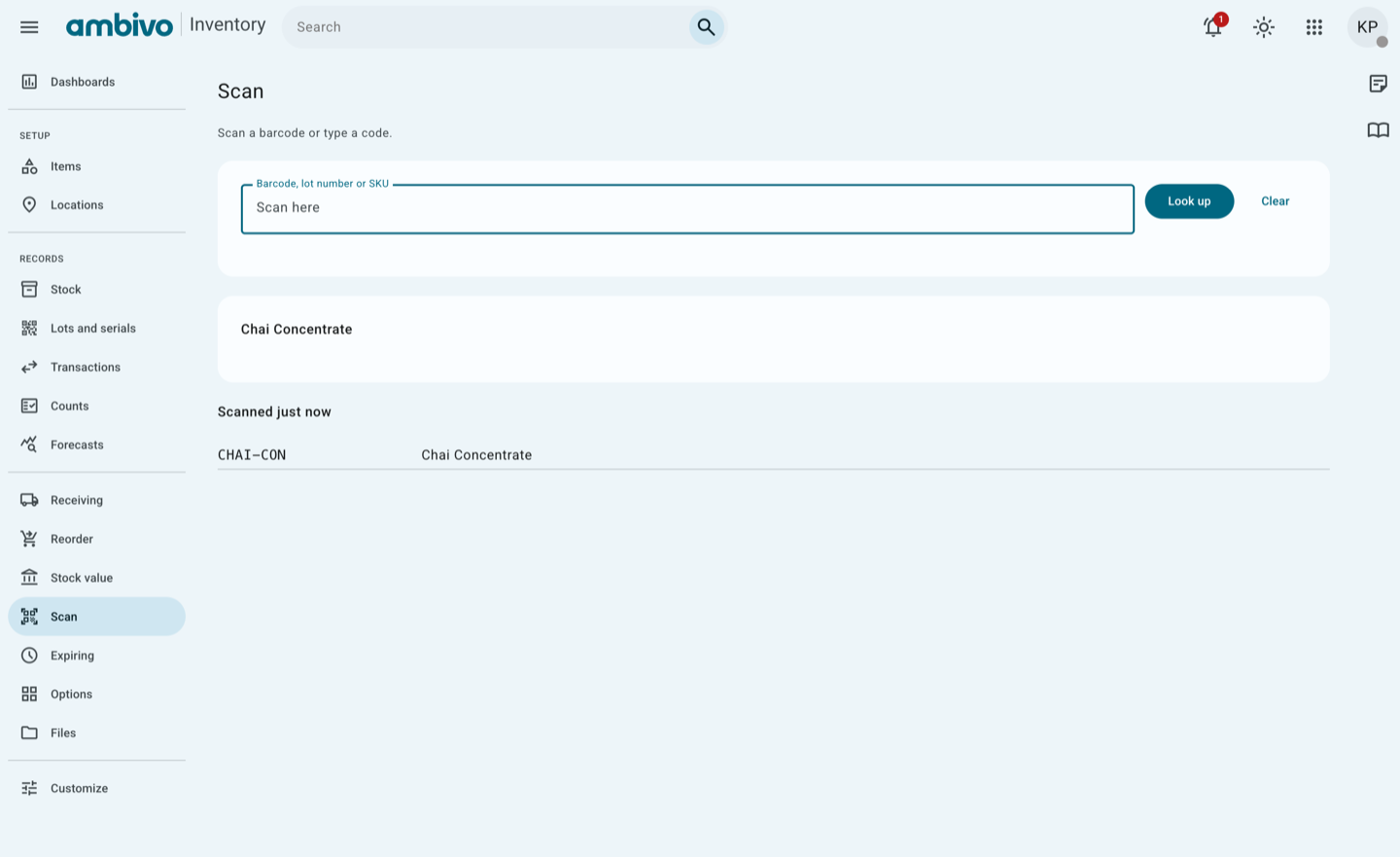
A barcode scanner works like a keyboard. Click the box, then scan.
Good to know
- The numbers change with every transaction. Click Refresh to see the latest.
- Counting your shelves is done in the Ambivo Inventory phone app.
You have finished the tutorial. The full user guide covers every page in more detail.