
Tutorial
Workforce Supervisor Tutorial
Set up shifts and a crew in Ambivo Workforce, put people on shifts, and change them.
Chapters
- 1. Sign In and Find Your Way
- 2. Add Your People
- 3. Set Up a Shift
- 4. Build Your Crew
- 5. Put Your Crew on Shifts
- 6. Change a Shift
- 7. What Your Crew Sees
1. Sign In and Find Your Way
This course follows one supervisor through a first week of setup. You will make a shift, build a crew, put the crew on shifts and then change some of those shifts.
Each chapter uses the same example. The supervisor runs the morning at Downtown Cafe. Their crew is Maria, Priya and one more team member.
The phone app does more
This course uses the web app. The Ambivo Workforce phone app has some features of its own:
- Shared terminal. Set up a tablet or phone at the site as a terminal. Crew clock in and out there by showing their badge.
- My badge. A crew member opens My badge on their own phone and holds it up to the terminal. A badge lasts about 90 seconds, so a screenshot stops working.
- Shift reminders. The phone reminds the crew member 60 minutes before each shift. It works with no signal.
- Phone alarm. On Android, Set a phone alarm adds the shift to the phone's own clock app.
Get the app for Android on Google Play. See all Ambivo apps on our Google Play page. For iPhone, ask your admin.
What you need
- A supervisor sign-in. Your company admin gives you an email and a password.
- A computer with a web browser.
- The people on your crew must already be in Ambivo. Chapter 2 shows how an admin adds them.
Sign in
- Open workforce.ambivo.com in your browser.
- Enter your Email and Password.
- Click Login.
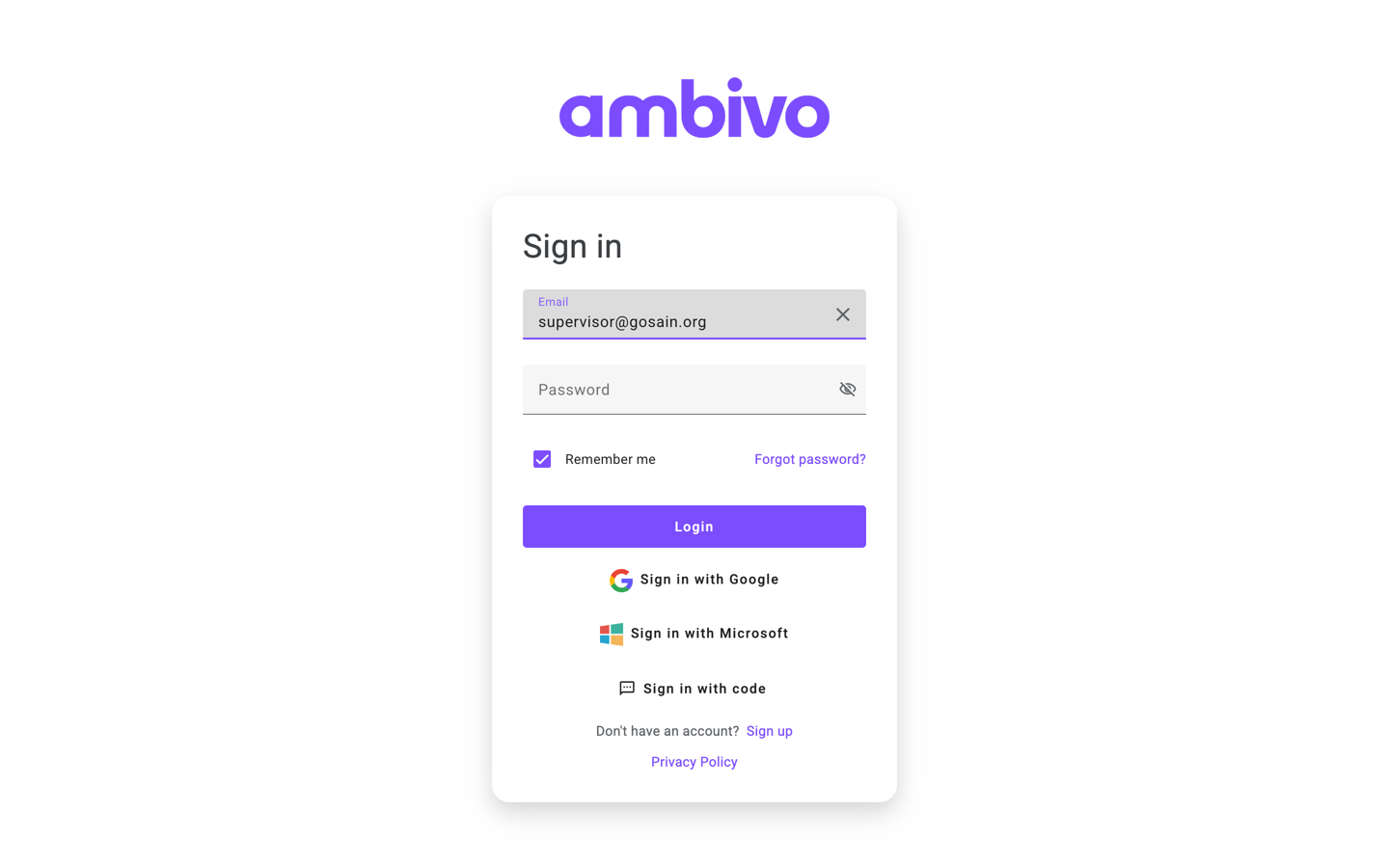
If your company uses two-step sign-in, Ambivo emails you a 6-digit code. Type it in and click Continue.
The menu
After you sign in, Workforce opens on Dashboards. The menu on the left has everything in this course.
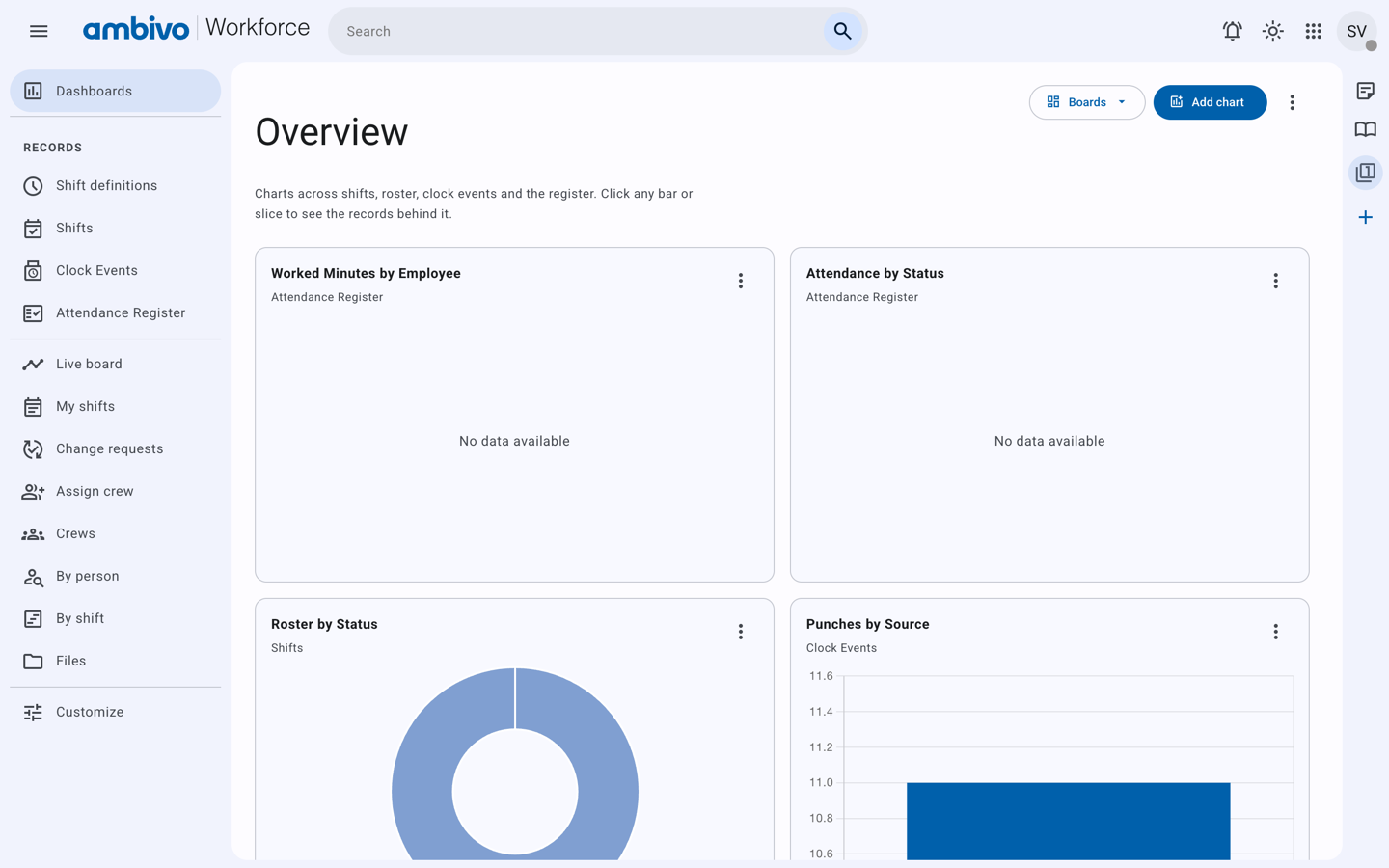
| Menu item | What you do there |
|---|---|
| Shift definitions | Set up the shifts you run, like "Cafe Opening, 06:00 to 14:00". |
| Shifts | See and change each person's shift on each date. |
| Crews | Make groups of people who work together. |
| Assign crew | Put a whole crew on a shift for many days at once. |
| By person | See one person's shifts, day by day. |
| By shift | See who works one shift definition, day by day. |
| Live board | See who is clocked in right now. |
| Change requests | Answer staff who ask to be taken off a shift. |
The book icon at the top right opens the full Workforce guide.
Words used in this course
| Word | Meaning |
|---|---|
| Site | One place where people work, like "Downtown Cafe". |
| Shift definition | When a shift runs and its break rules. It has no date. |
| Shift | One person on one shift definition on one date. |
| Crew | A named group of people at one site. |
| Draft | A shift your crew cannot see yet. |
| Published | A shift your crew can see. |
Next: 2. Add Your People
2. Add Your People
Everyone on a shift must be a person in Ambivo. There are two kinds:
- Named users have their own Ambivo account. Your admin adds them as users.
- Guests are casual or seasonal workers. They are put on shifts and paid like anyone else.
Crews can have named users, guests, or both
Choose what fits your business. You can mix both kinds in one crew.
- Guests suit part-time and seasonal workers. Use a guest when the person only works shifts and clocks in and out.
- Named users suit staff who also use other parts of Ambivo, like tasks or the CRM.
Both kinds are put on shifts, clocked and paid the same way.
This chapter adds a guest. In our example, the admin adds Maria Lopez and Priya Nair. The third crew member, Crew Tester, is already a named user.
A guest needs an email address that can receive mail. Ambivo checks the address. The Grant access button in Step 2 stays grey until the address passes.
Step 1. Add the person as a contact
- Open crm.ambivo.com and sign in as an admin.
- In the menu, open Contacts.
- Click Create.
- Fill in First name, Last name and Email.
- Under Site, choose the site where they work. In our example, Downtown Cafe.
- Click Create, then View details.
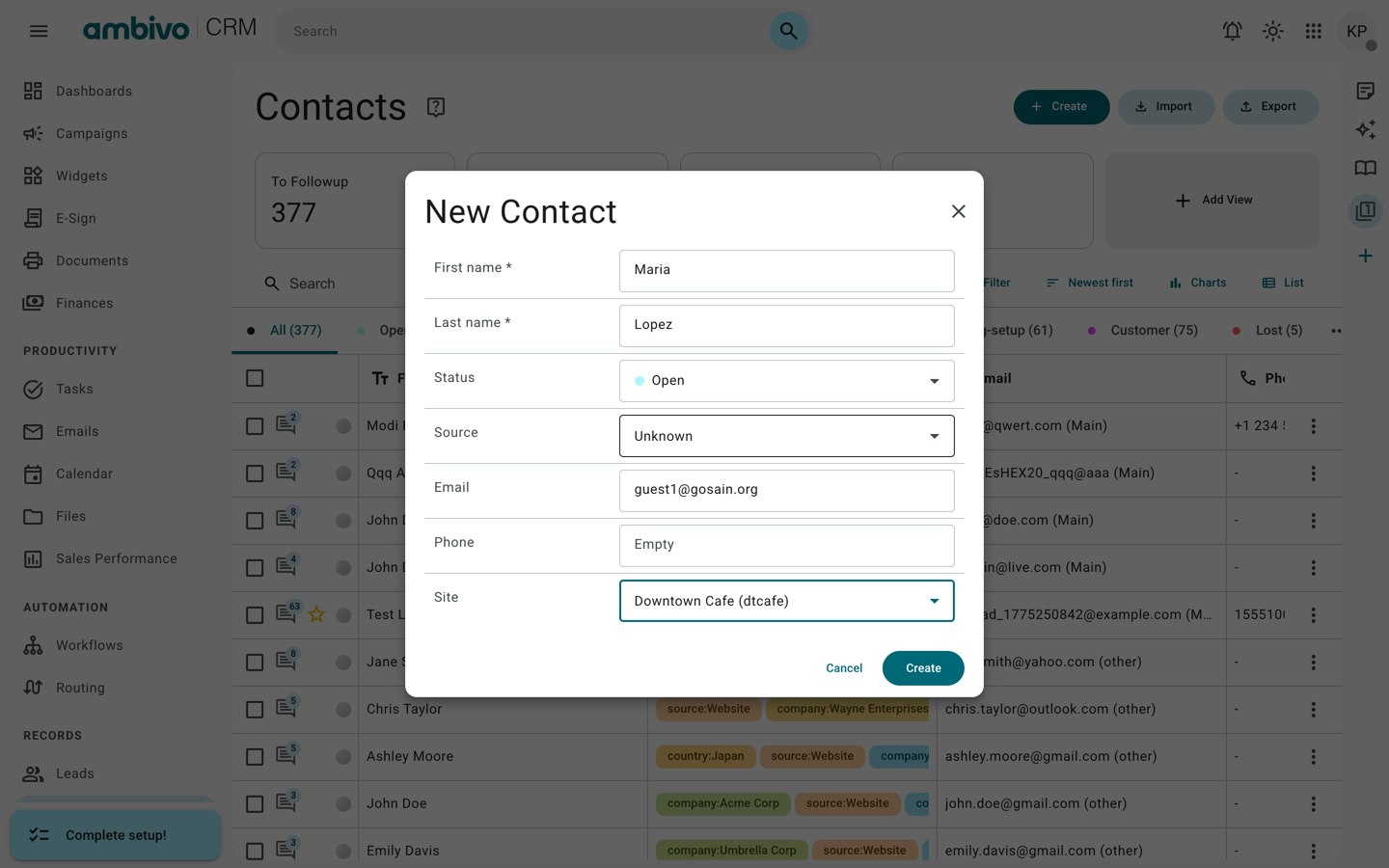
If the email is already on a lead, Ambivo will not save the contact. Use a different email, or grant access from that lead instead.
Step 2. Turn the contact into a guest
- On the contact, open the Guest user tab.
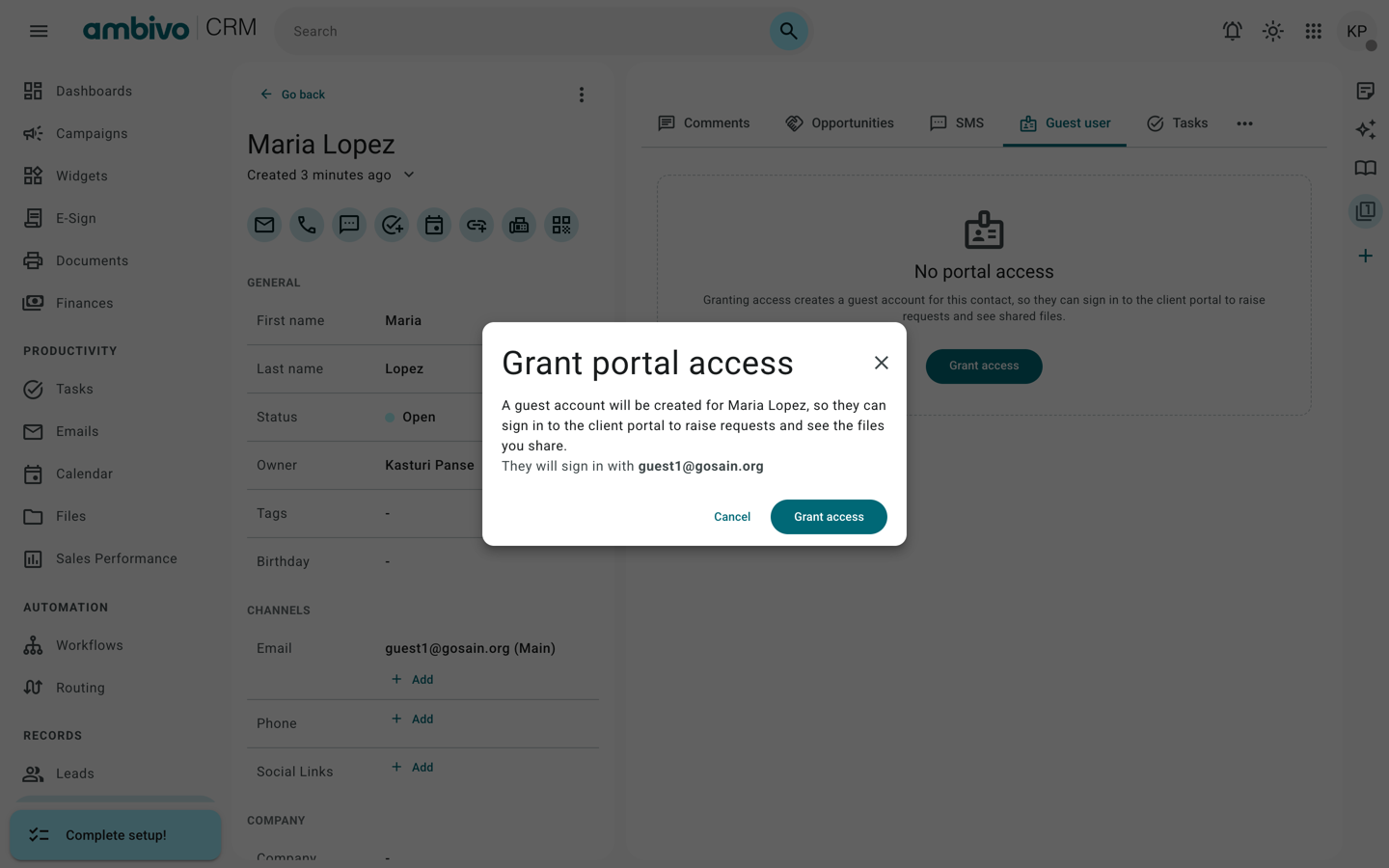
- Click Grant access.
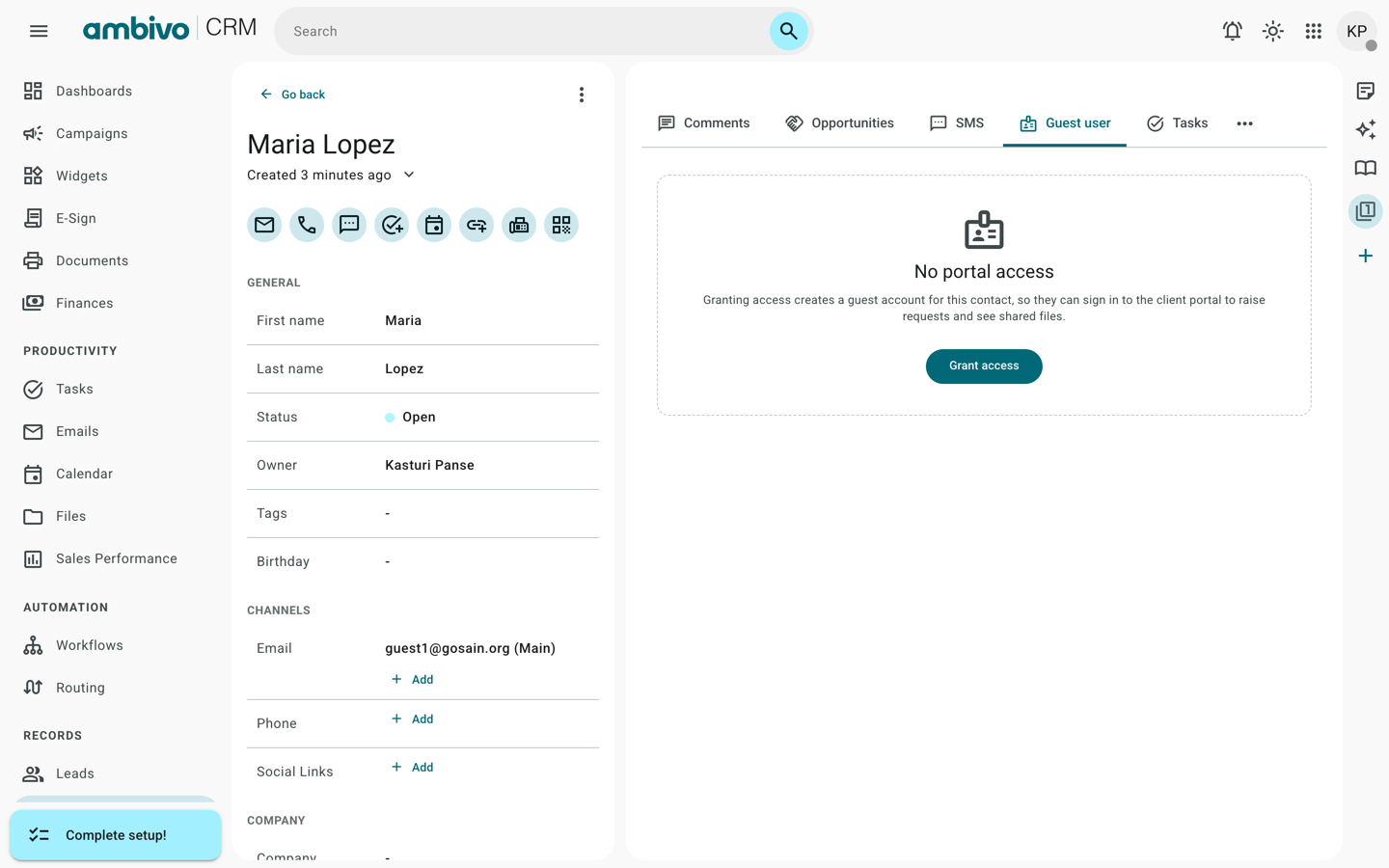
- Check the email in the message. The guest signs in with this address.
- Click Grant access.
The message says the guest can now sign in. Click Close.
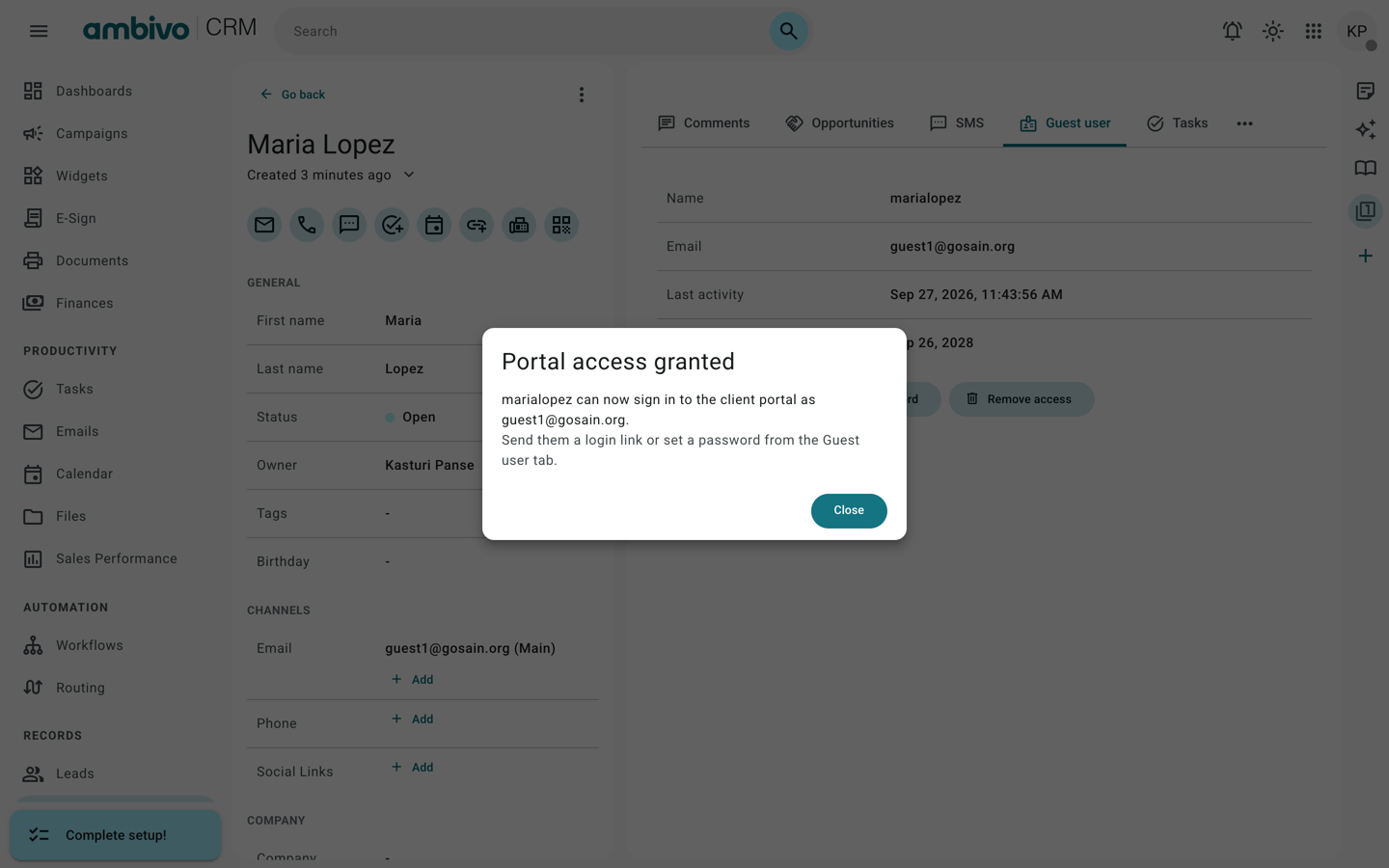
The guest does not need to confirm their email. They can be put on shifts straight away.
Step 3. Give the guest a way to sign in
The guest gets a temporary password. It stops working after 7 days if they never sign in. Do one of these now:
- Click Set password. Type a New password with capitals, numbers and a special character. Click Save, then tell the guest the password.
- Click Get access link and send them the link.
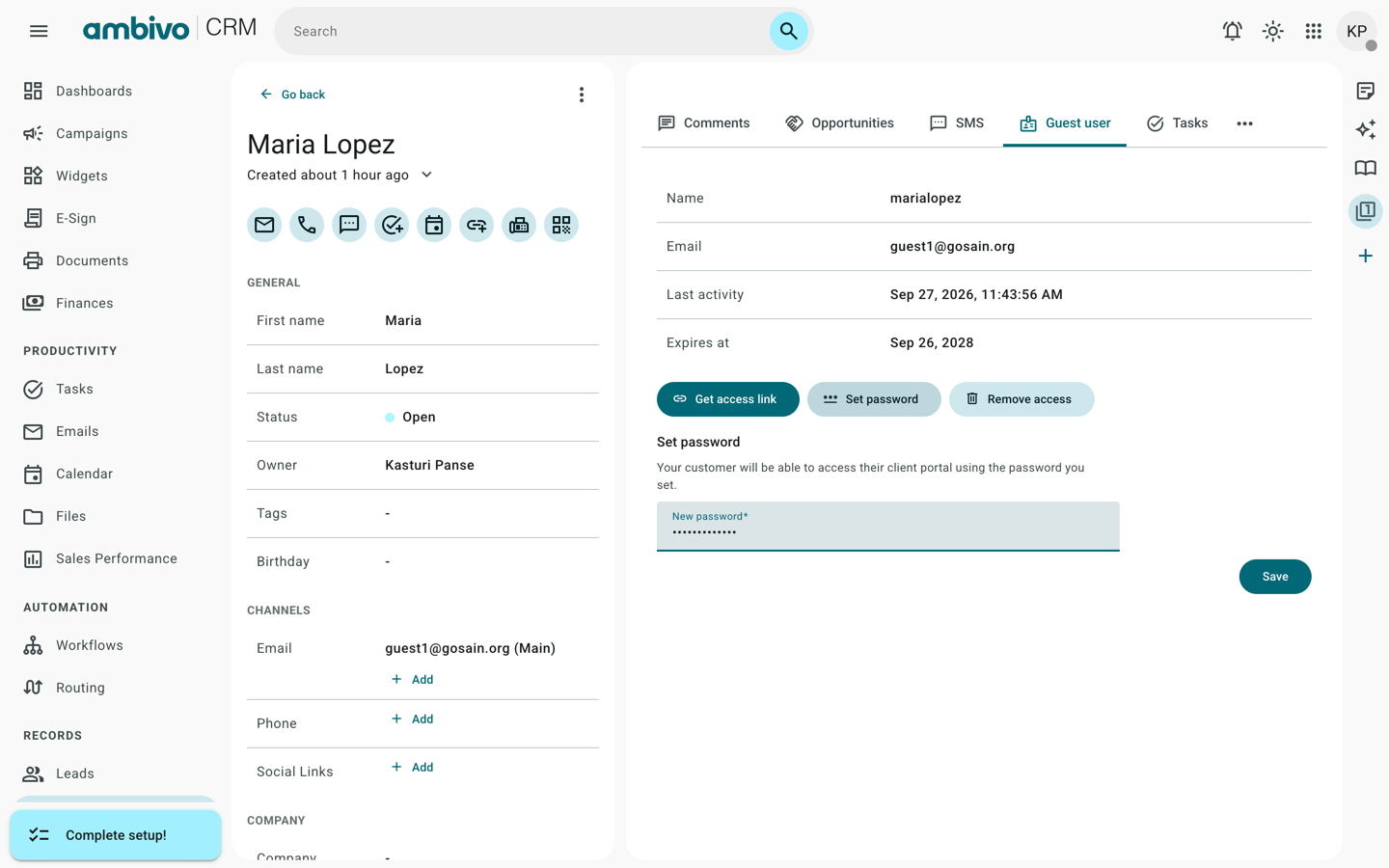
With a password, the guest can sign in to workforce.ambivo.com and see their own shifts. Chapter 7 shows what they see.
Some guests never sign in. A supervisor or a shared tablet clocks them in. For them, you can skip this step.
What the supervisor will see
Workforce shows the guest by the name on the contact. In our example, Maria Lopez and Priya Nair.
A guest can be in a crew at any site. You do not need to give them a role.
Next: 3. Set Up a Shift
3. Set Up a Shift
A shift definition says when a shift runs. It has a start, an end, the days and the break. It has no date and no people. You add those in Chapter 5.
In our example, the cafe opens every weekday. The opening shift runs from 06:00 to 14:00, Monday to Friday, with a 30-minute unpaid break.
Open the list
In the menu, click Shift definitions. You see the shifts your company already runs.
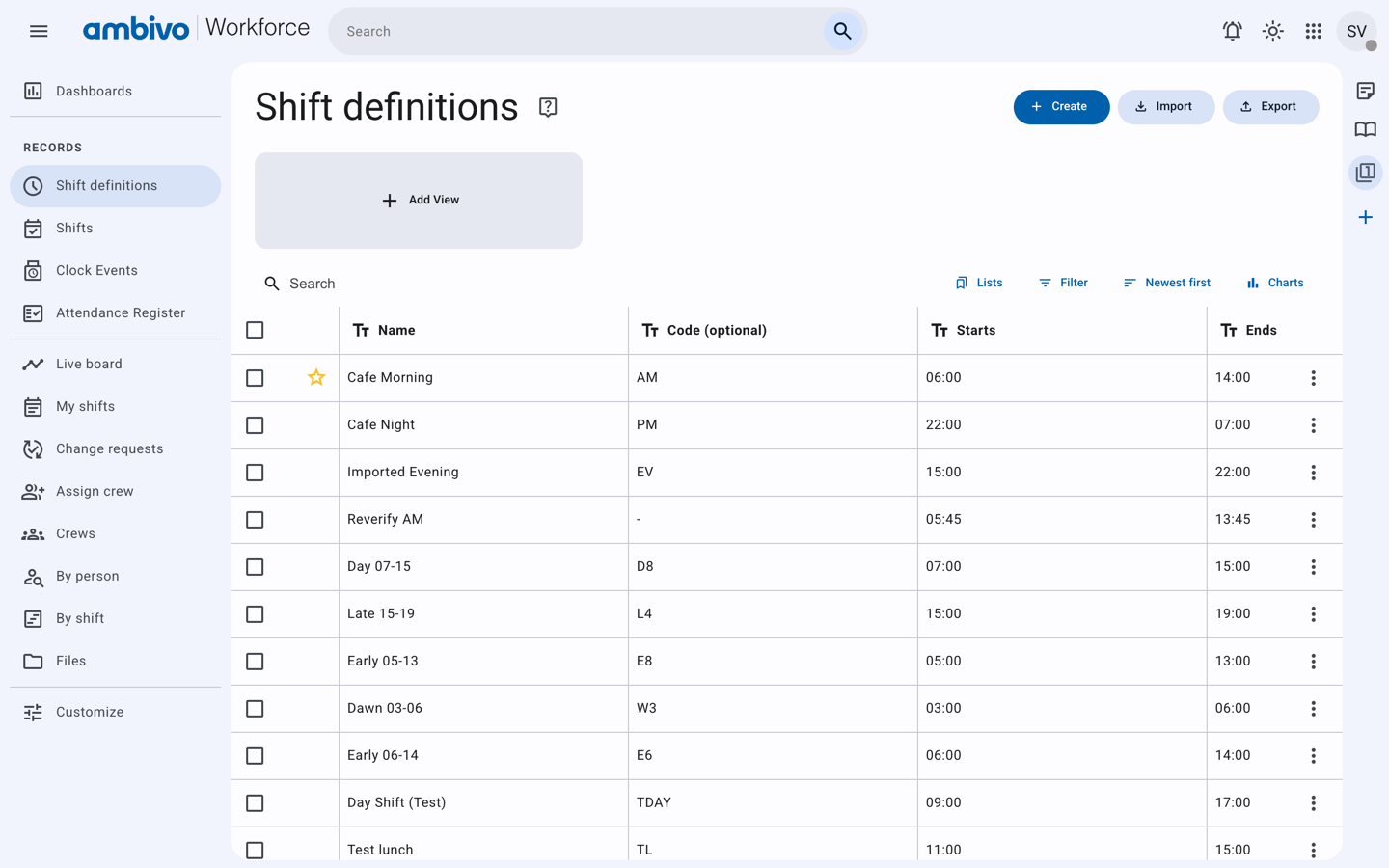
Check the list first. If the shift you need is there, you can use it and skip to Chapter 4.
Make a new shift definition
- Click Create.
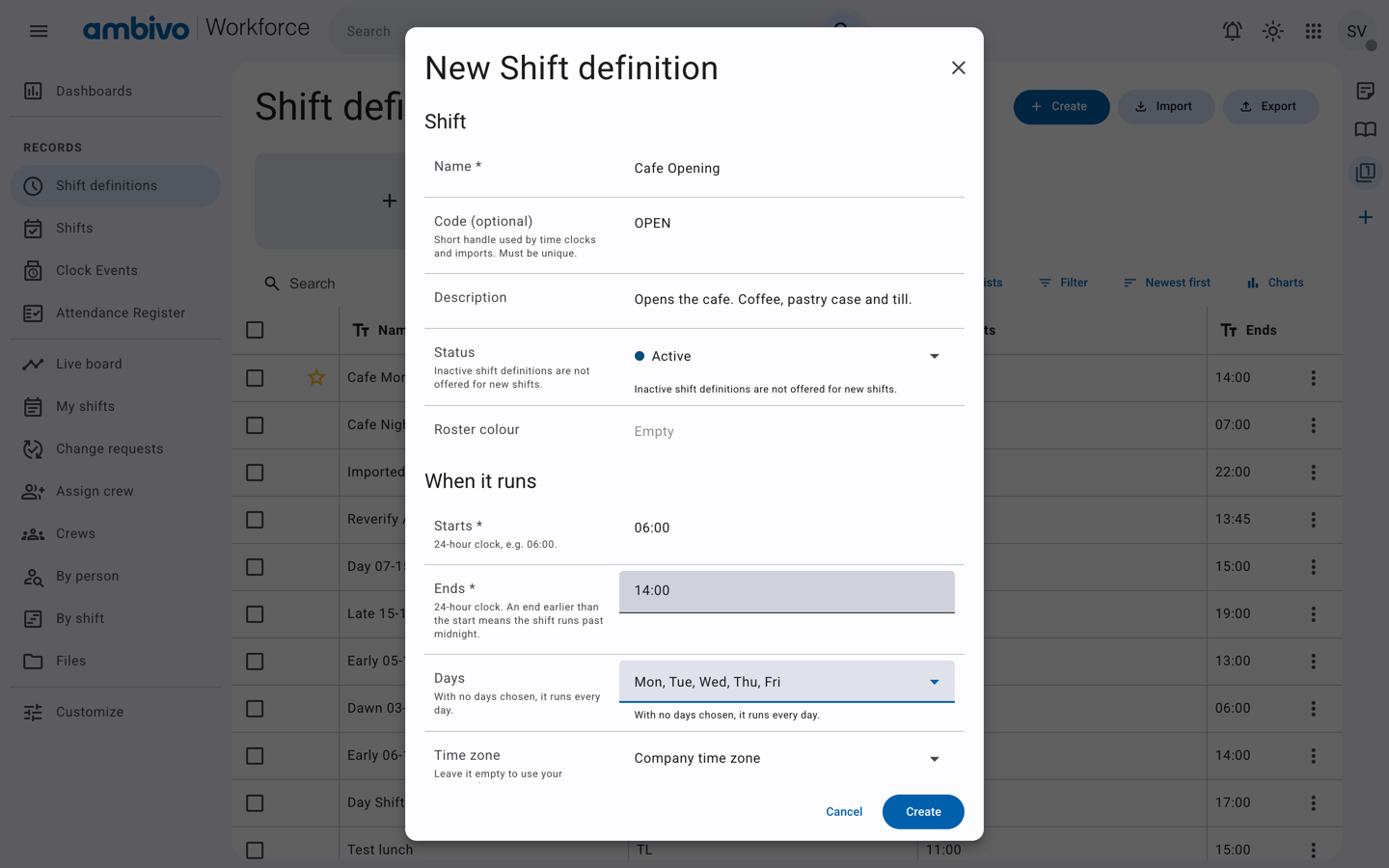
- Fill in the top part:
| Field | Our example | Notes |
|---|---|---|
| Name | Cafe Opening | Staff see this name. |
| Code | OPEN | Optional. A short name for time clocks and imports. |
| Description | Opens the cafe. Coffee, pastry case and till. | Optional. |
| Status | Active | Only active shift definitions can be used for new shifts. |
| Starts | 06:00 | 24-hour clock. |
| Ends | 14:00 | An end earlier than the start means the shift runs past midnight. |
| Days | Mon, Tue, Wed, Thu, Fri | With no days chosen, it runs every day. |
| Time zone | Company time zone | Leave it as it is unless the site is in another time zone. |
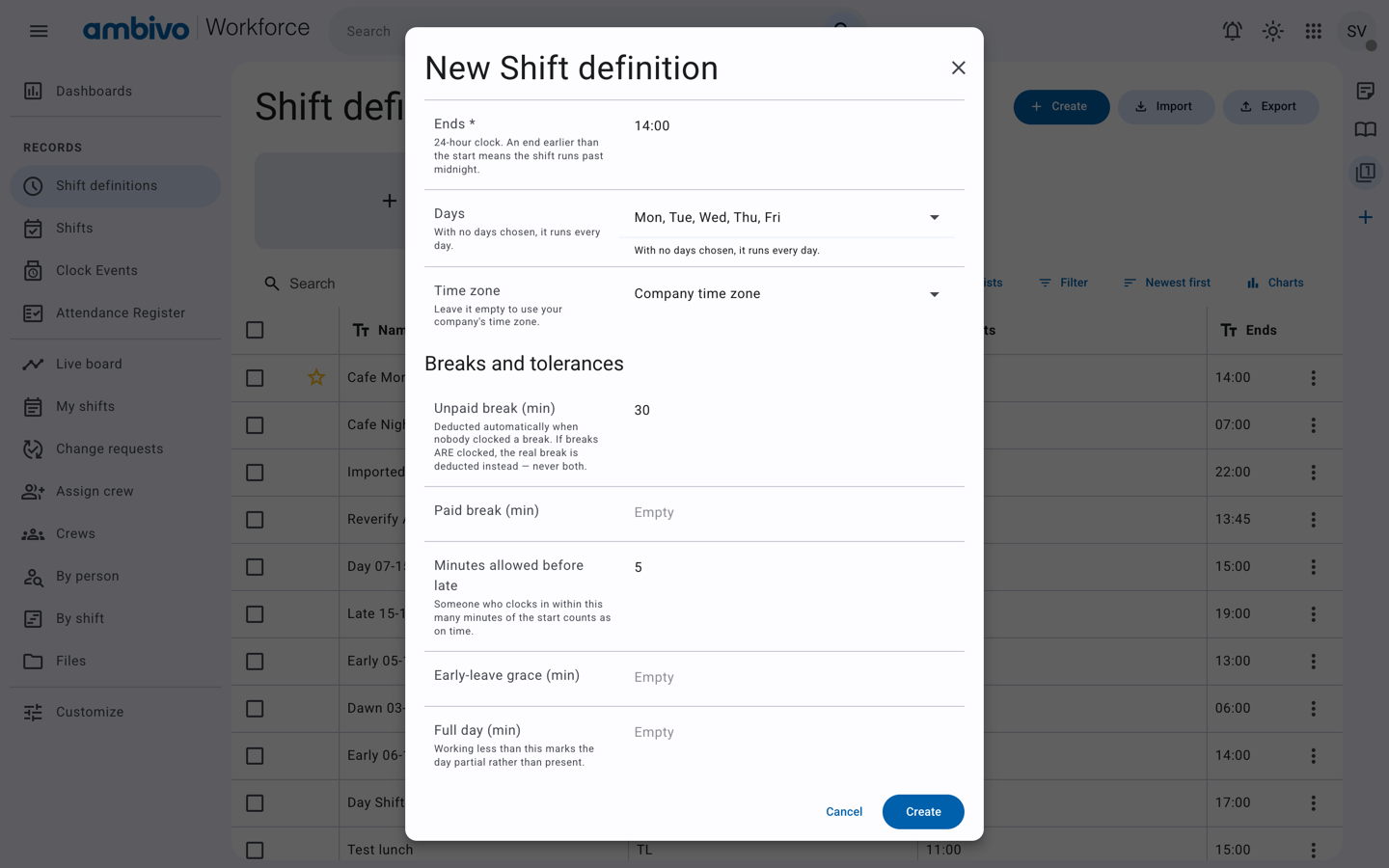
- Scroll down to Breaks and tolerances and Where it is worked:
| Field | Our example | Notes |
|---|---|---|
| Unpaid break (min) | 30 | Taken off the hours when nobody clocks a break. |
| Minutes allowed before late | 5 | Clocking in by 06:05 counts as on time. |
| Site | dtcafe | Type the site's short code. Ask your admin if you do not know it. |
- Click Create.
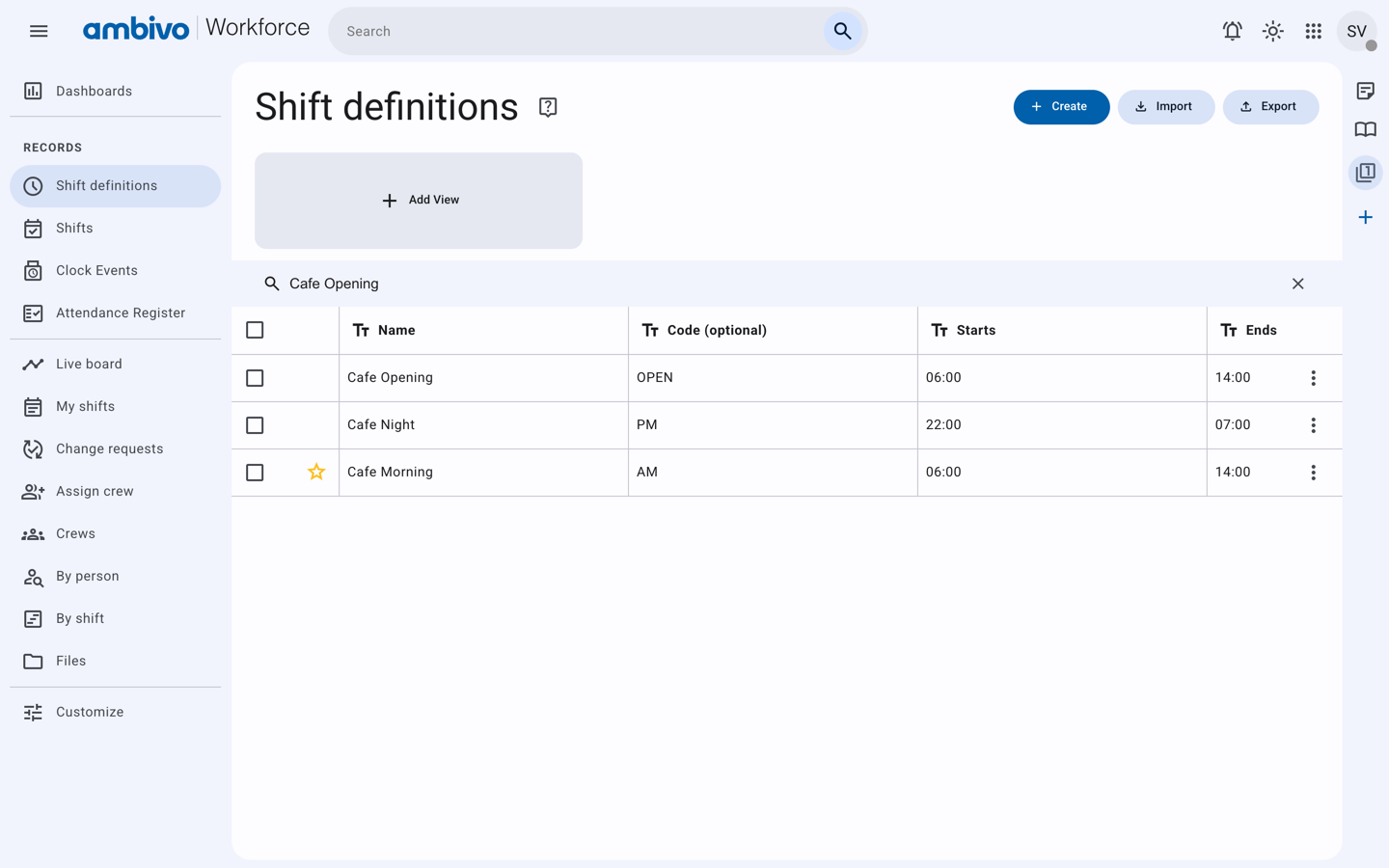
The new shift definition is in the list. Type its name in Search to find it.
Good to know
- Changing a shift definition later does not change shifts you already made. Each shift keeps the times it was made with.
- Leave the overtime and rounding fields empty unless your company has told you the rules.
Next: 4. Build Your Crew
4. Build Your Crew
A crew is a named group of people who work together at one site. With a crew, you can put everyone on shifts in one step.
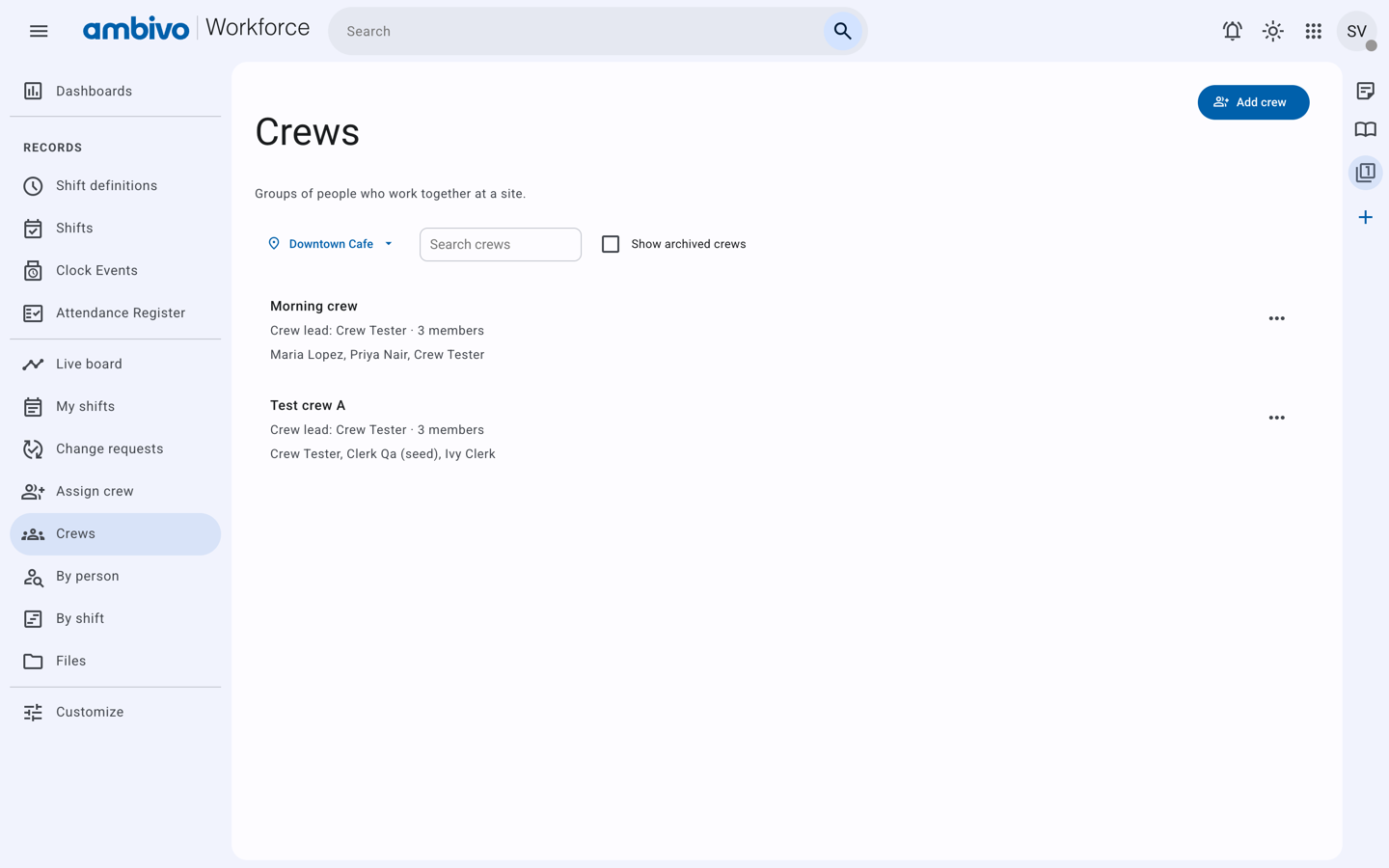
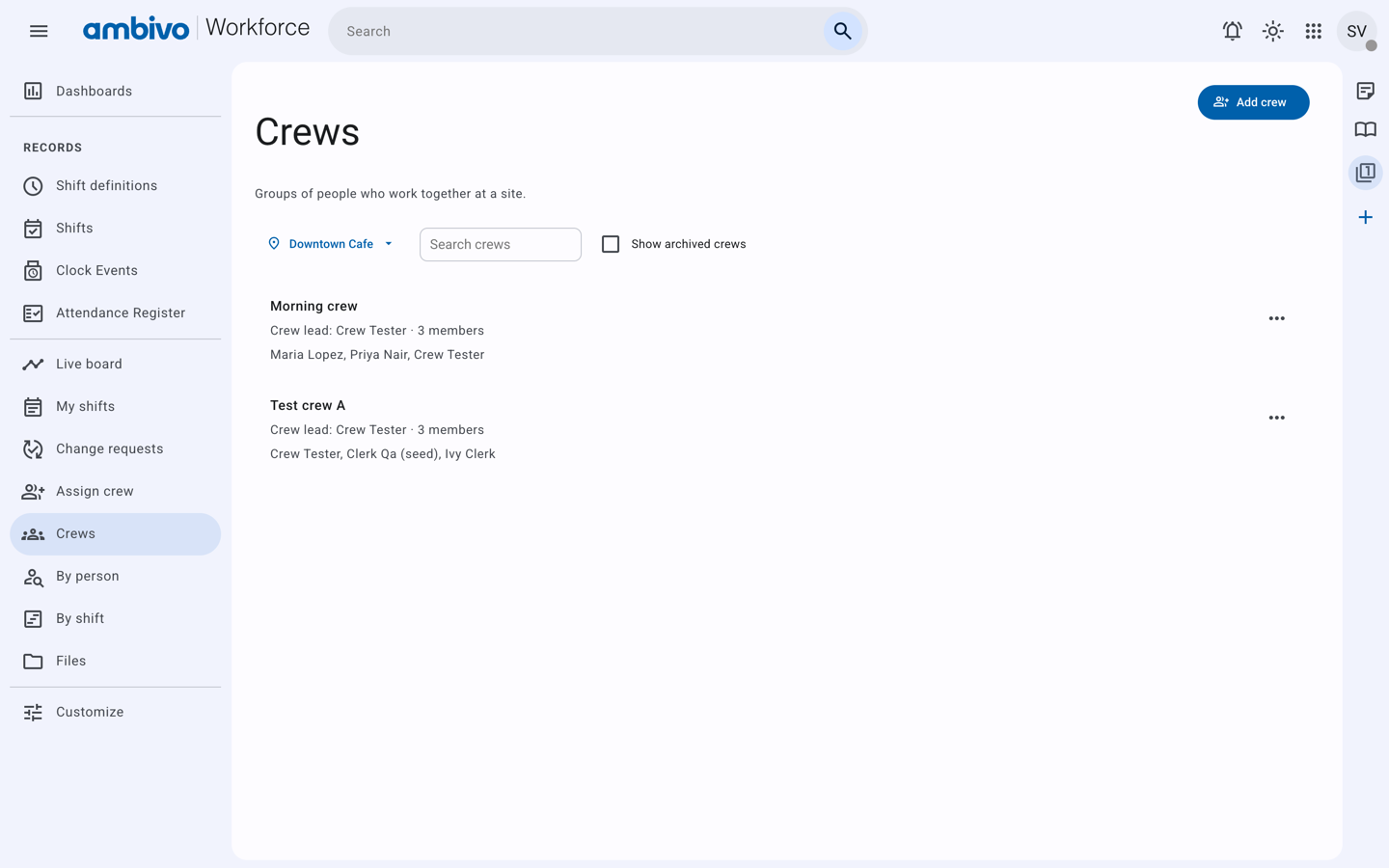
In our example, the supervisor makes Morning crew at Downtown Cafe. It has 3 members: Maria Lopez, Priya Nair and Crew Tester. Crew Tester is the crew lead.
A crew can have named users, guests, or both
Morning crew mixes both kinds. Maria and Priya are guests. Crew Tester is a named user.
- Guests suit part-time and seasonal workers who only work shifts and clock in and out.
- Named users suit staff who also use other parts of Ambivo.
The member list shows both kinds together. Choose the mix that fits your business. Chapter 2 shows how an admin adds a guest.
Choose the site
- In the menu, click Crews.
- Click the site name under the title. Choose your site. In our example, Downtown Cafe.
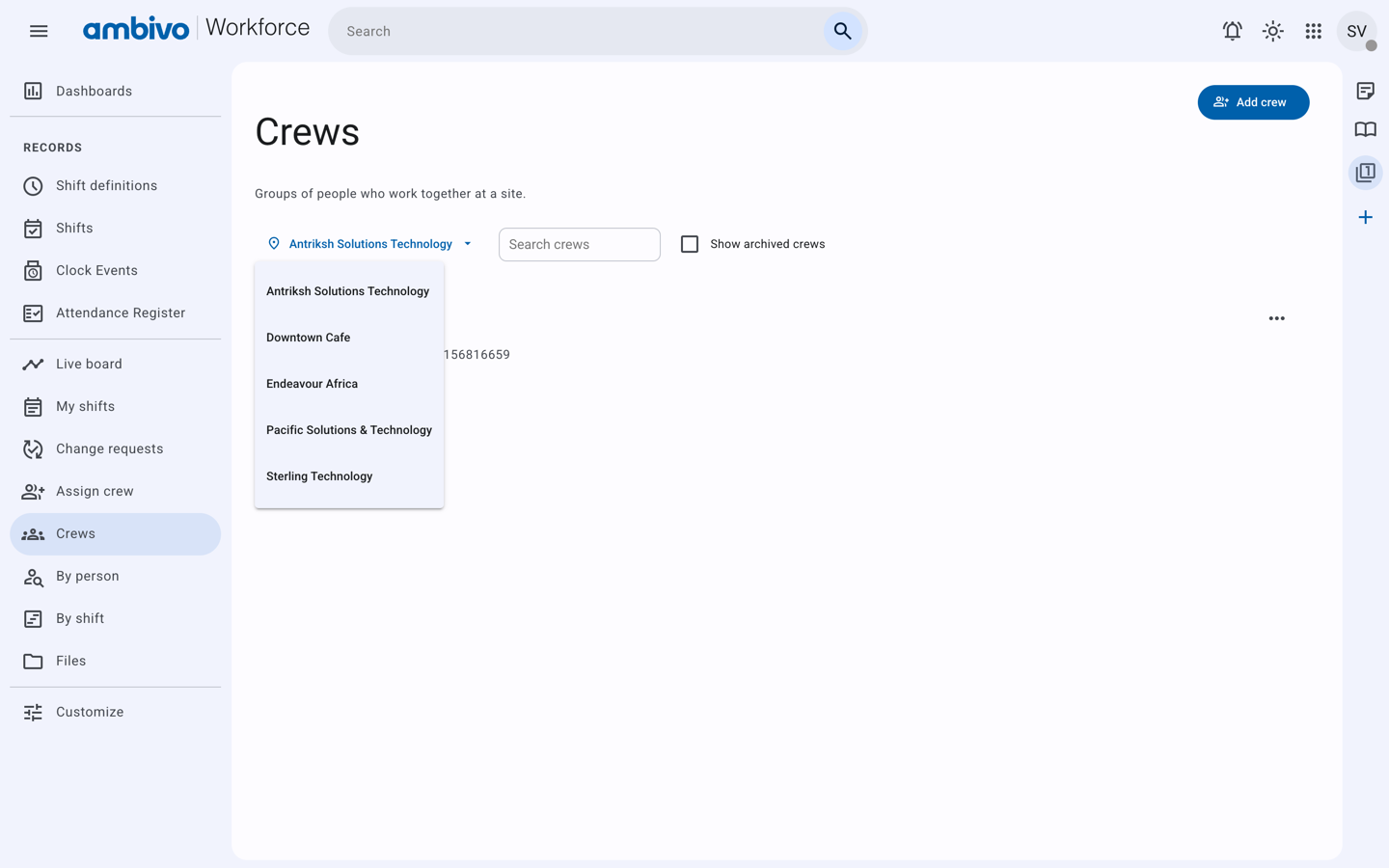
The page lists the crews at that site.
Add the crew
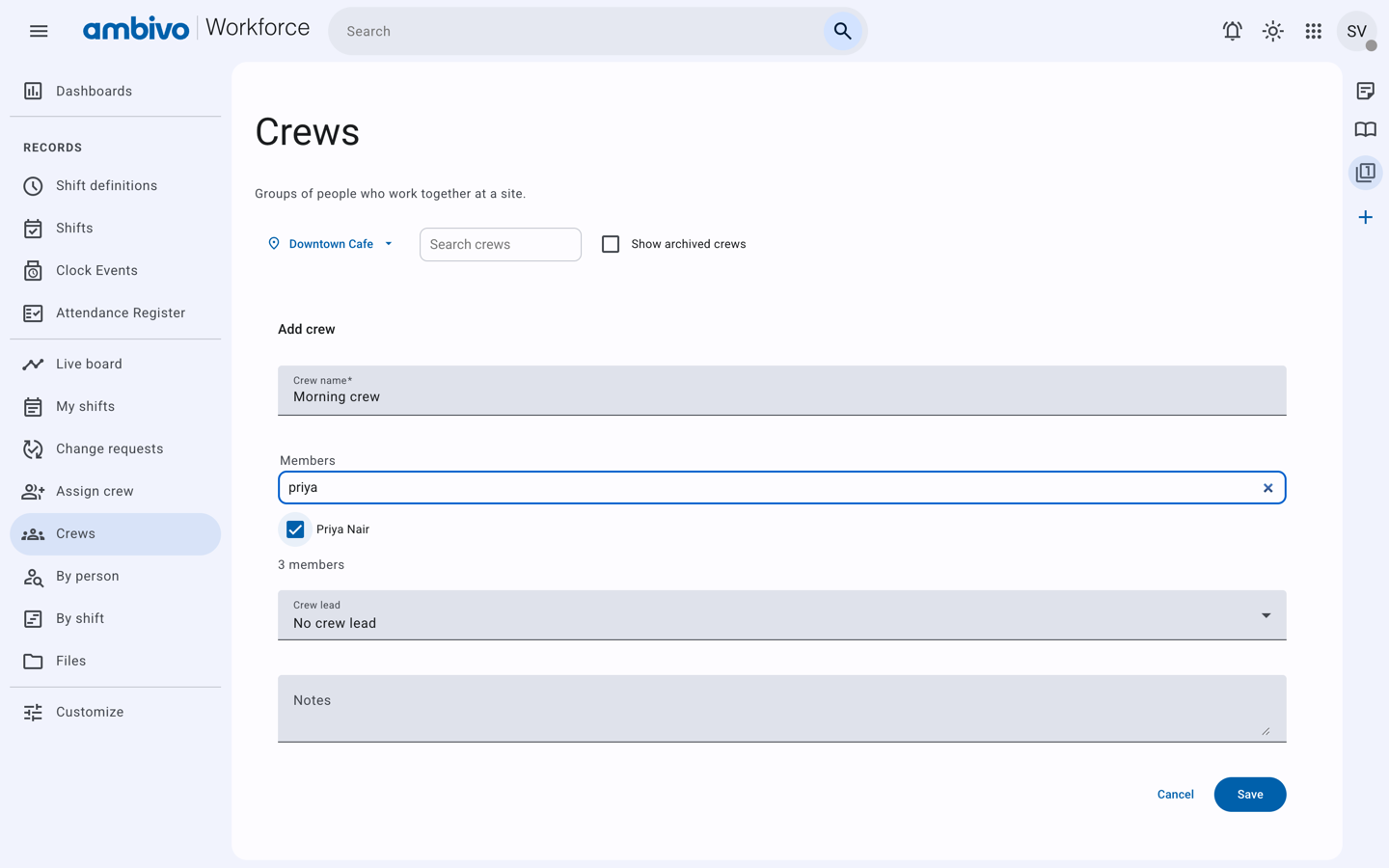
- Click Add crew.
- In Crew name, type Morning crew.
- Under Members, type a name in Search by name. Tick the person.
- Do this for each person. The count under the list goes up, for example 3 members.
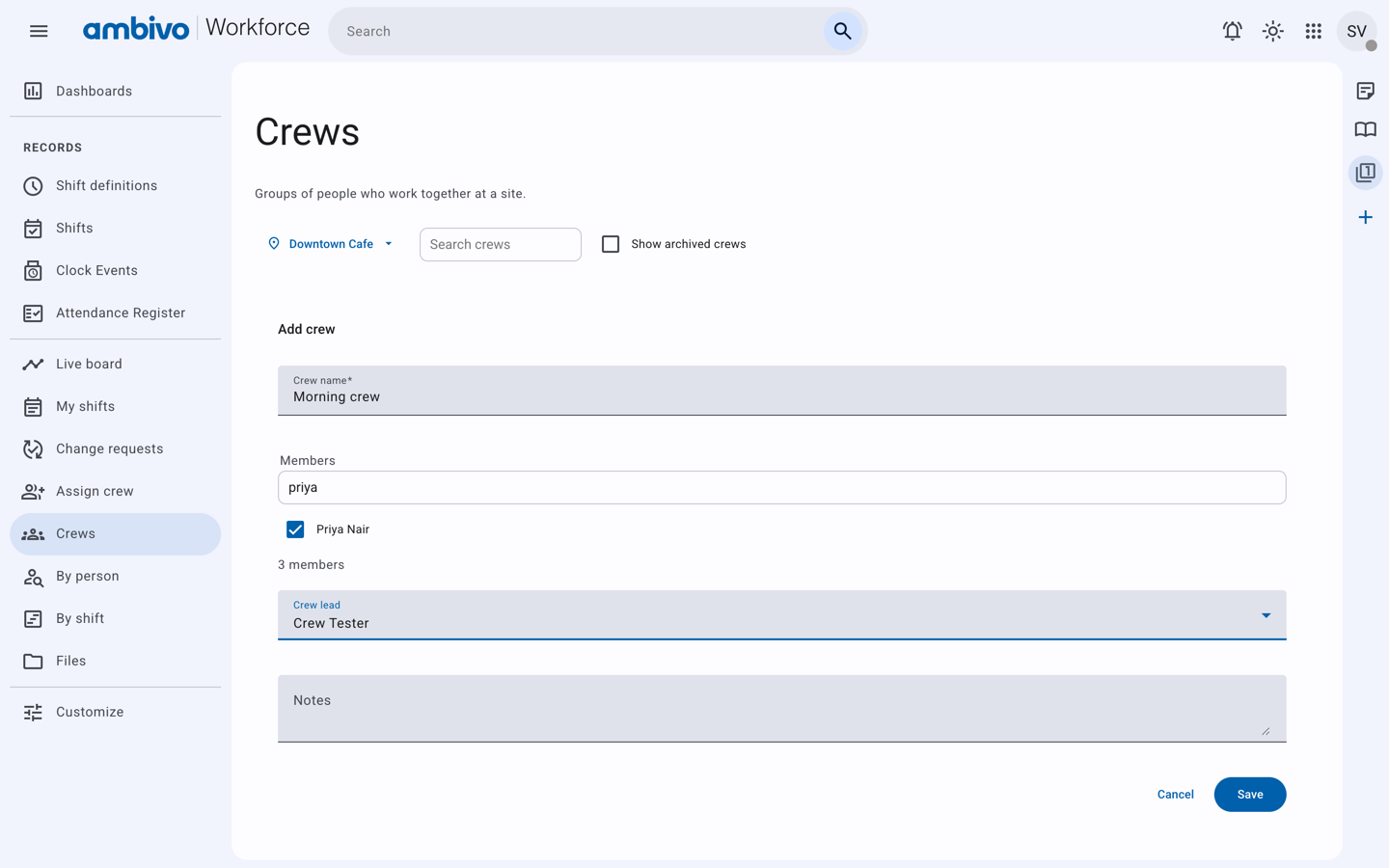
- Under Crew lead, choose one of the members. This is optional.
- Add Notes if you want.
- Click Save.
The page says Crew saved. The crew shows its lead and its members.
Good to know
- A crew belongs to one site. For another site, make another crew.
- A person can be in more than one crew.
- A crew can have up to 200 members.
- A named user missing from the member list needs a role at your site. Ask your admin.
- Two active crews at the same site cannot have the same name.
- To change a crew later, click ... on the crew and choose Edit crew.
Next: 5. Put Your Crew on Shifts
5. Put Your Crew on Shifts
Assign crew puts a whole crew on one shift definition for many days at once.
In our example, the supervisor puts Morning crew on Cafe Opening from Monday 28 September to Friday 2 October. That is 3 people for 5 days, so 15 shifts.
Fill in the form
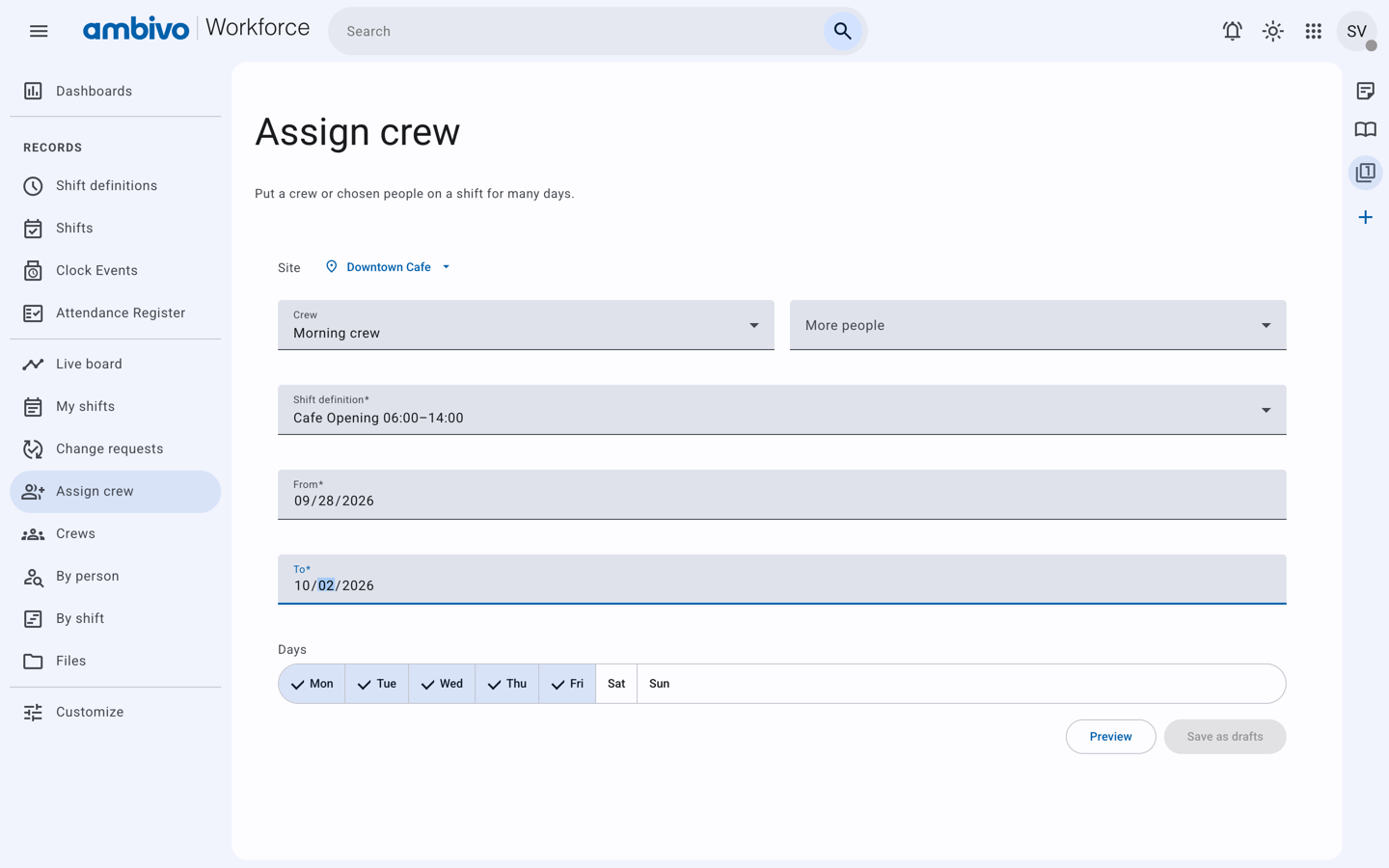
- In the menu, click Assign crew.
- Next to Site, choose your site. In our example, Downtown Cafe.
- Under Crew, choose Morning crew.
- To add people from outside the crew, use More people. In our example, leave it empty.
- Under Shift definition, choose Cafe Opening 06:00–14:00.
- Set From and To. In our example, 09/28/2026 and 10/02/2026.
- Under Days, keep the days you want. Mon to Fri are ticked.
Check the preview
Click Preview. Workforce lists every shift it will make. In our example it says 15 shifts to add, one row per person per day.
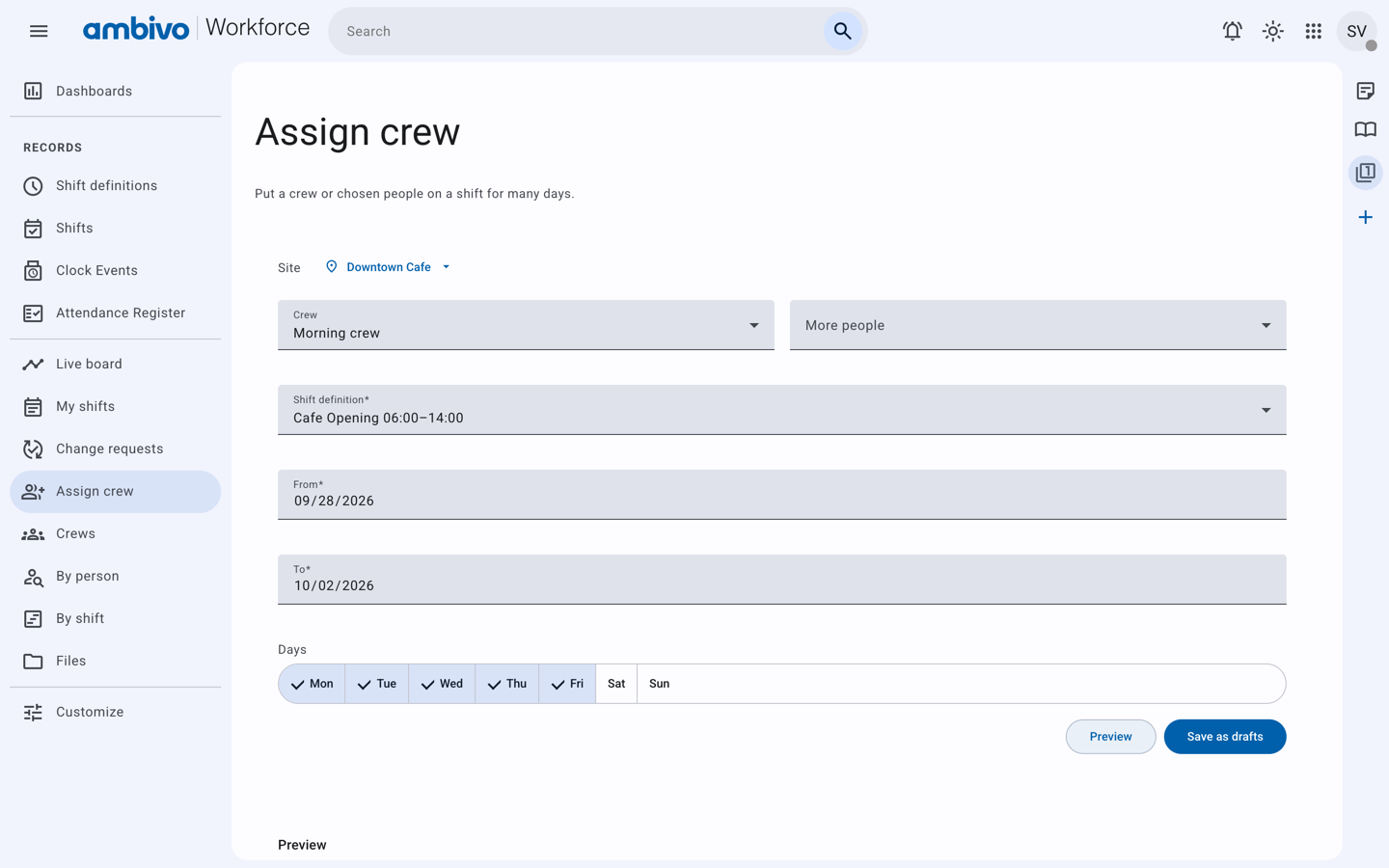
Some rows may be skipped. For example, a person who already has a shift at that time is skipped. The preview tells you why for each row.
Save, then publish
- Click Save as drafts. The page says "15 shifts saved as drafts. The crew cannot see them yet."
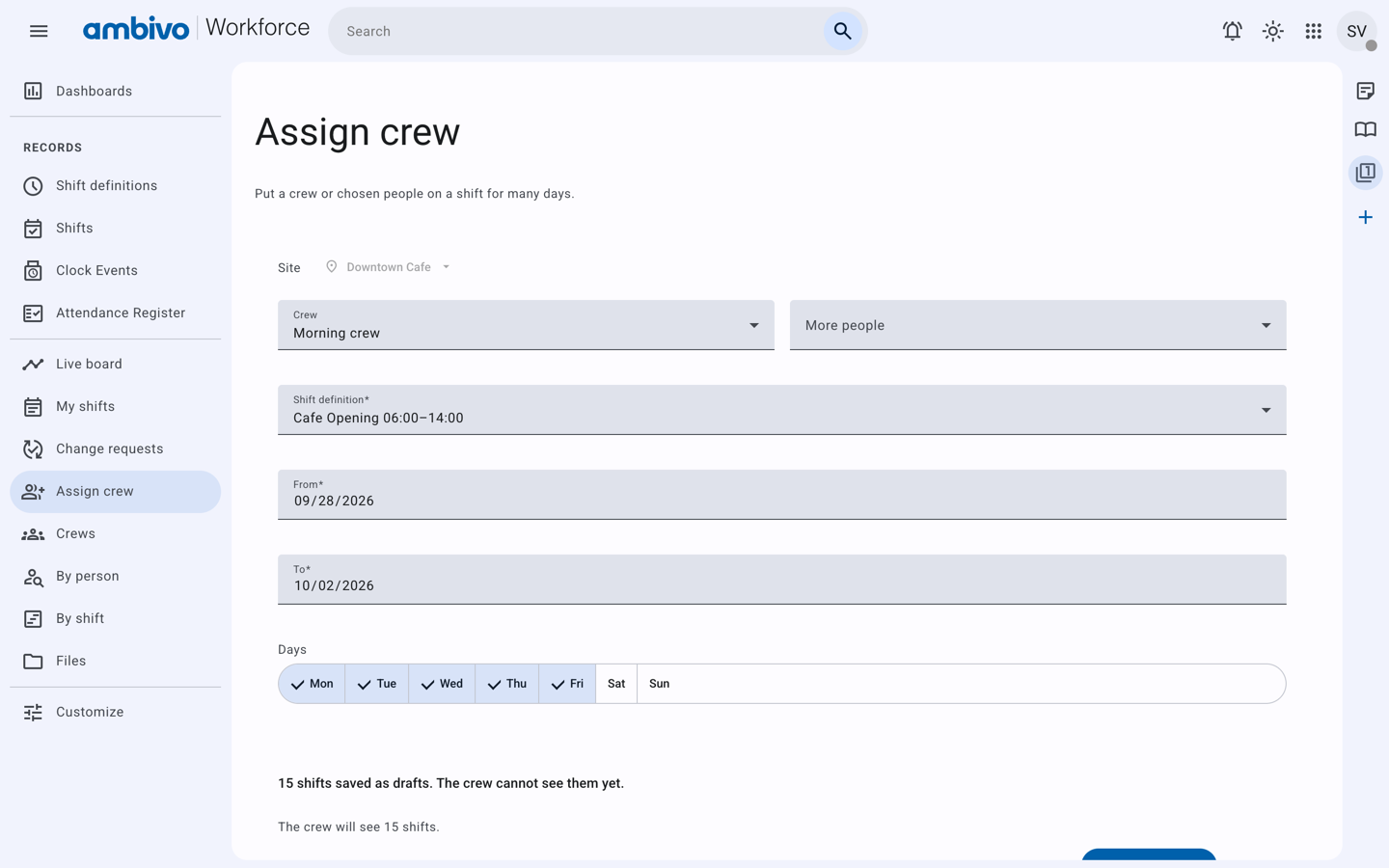
- Click Publish 15 shifts. The page says "15 shifts published." Now your crew can see them.
- Click Done.
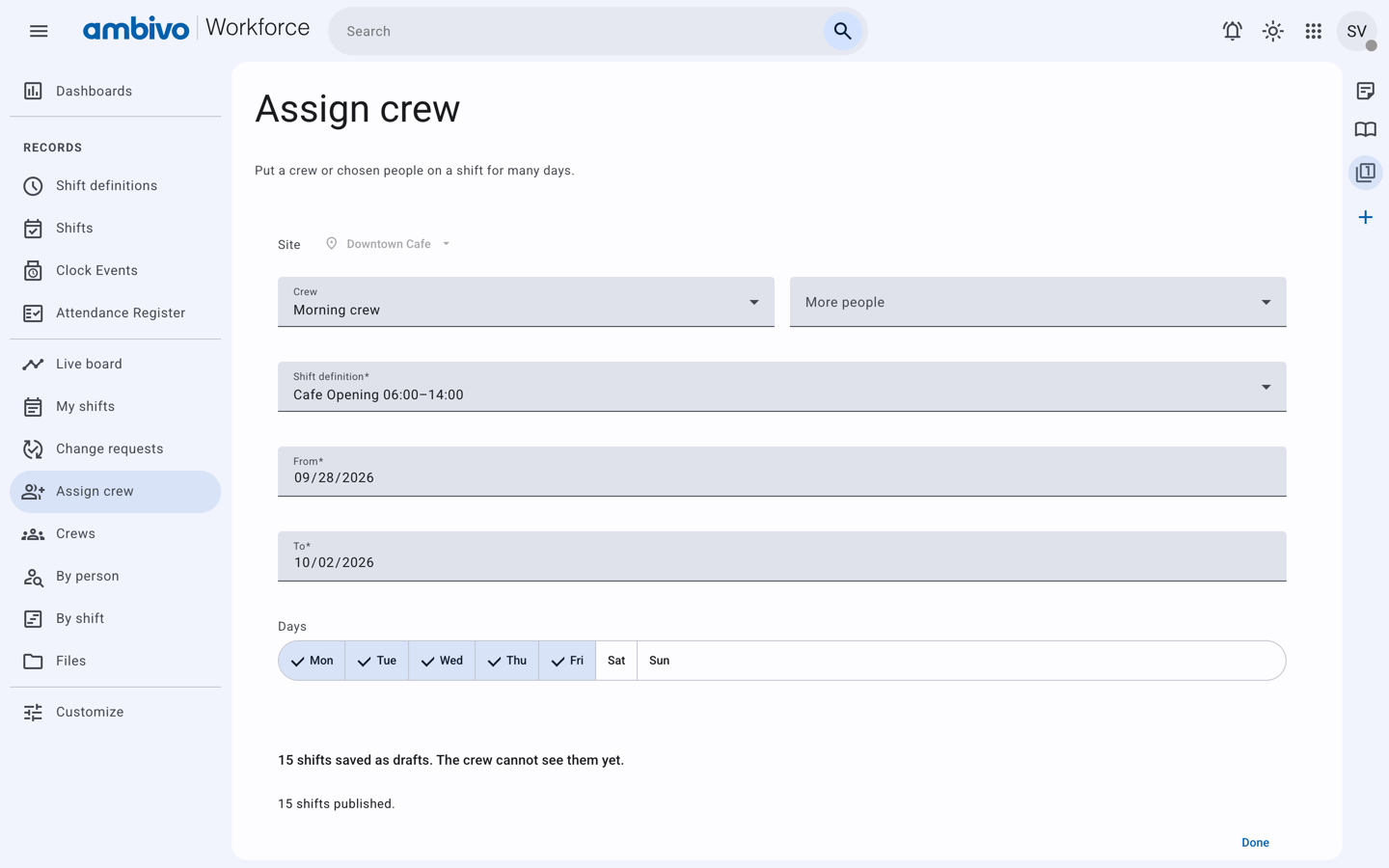
A draft gives you time to check the week before your crew sees it. You can publish later from Shifts.
Good to know
- One Assign crew covers up to 180 days and up to 2,000 shifts. For more, split the dates.
- If the page stops while saving, click Save as drafts again. Workforce does not make the same shifts twice.
Next: 6. Change a Shift
6. Change a Shift
Plans change after you publish. This chapter shows three changes:
- Maria needs to start an hour later on Wednesday.
- Crew Tester asks for Thursday off, and you approve it.
- You check the week to see what changed.
Find a shift
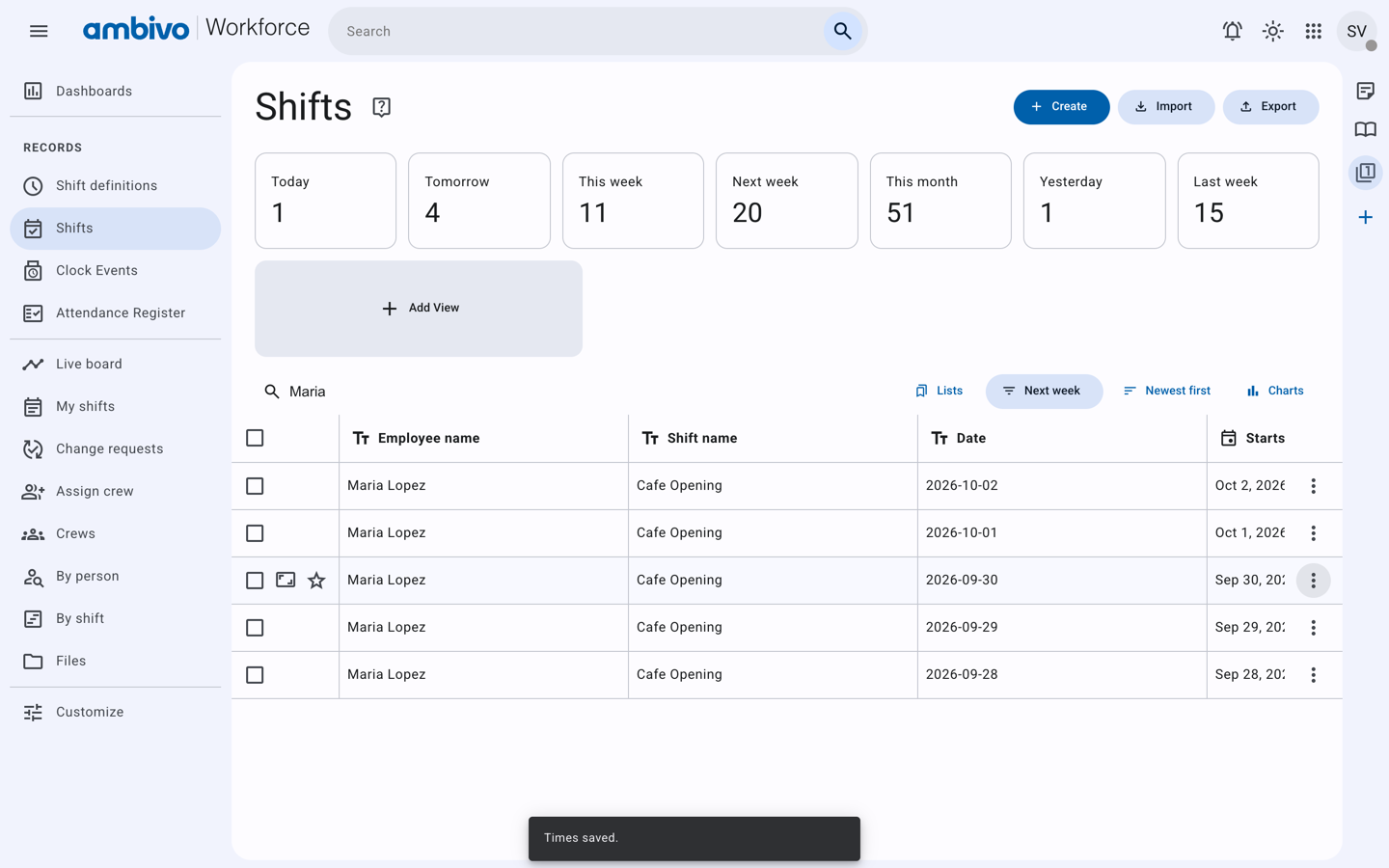
- In the menu, click Shifts.
- At the top, click Next week. The list shows only next week's shifts.
- Type a name in Search, for example Maria, and press Enter.
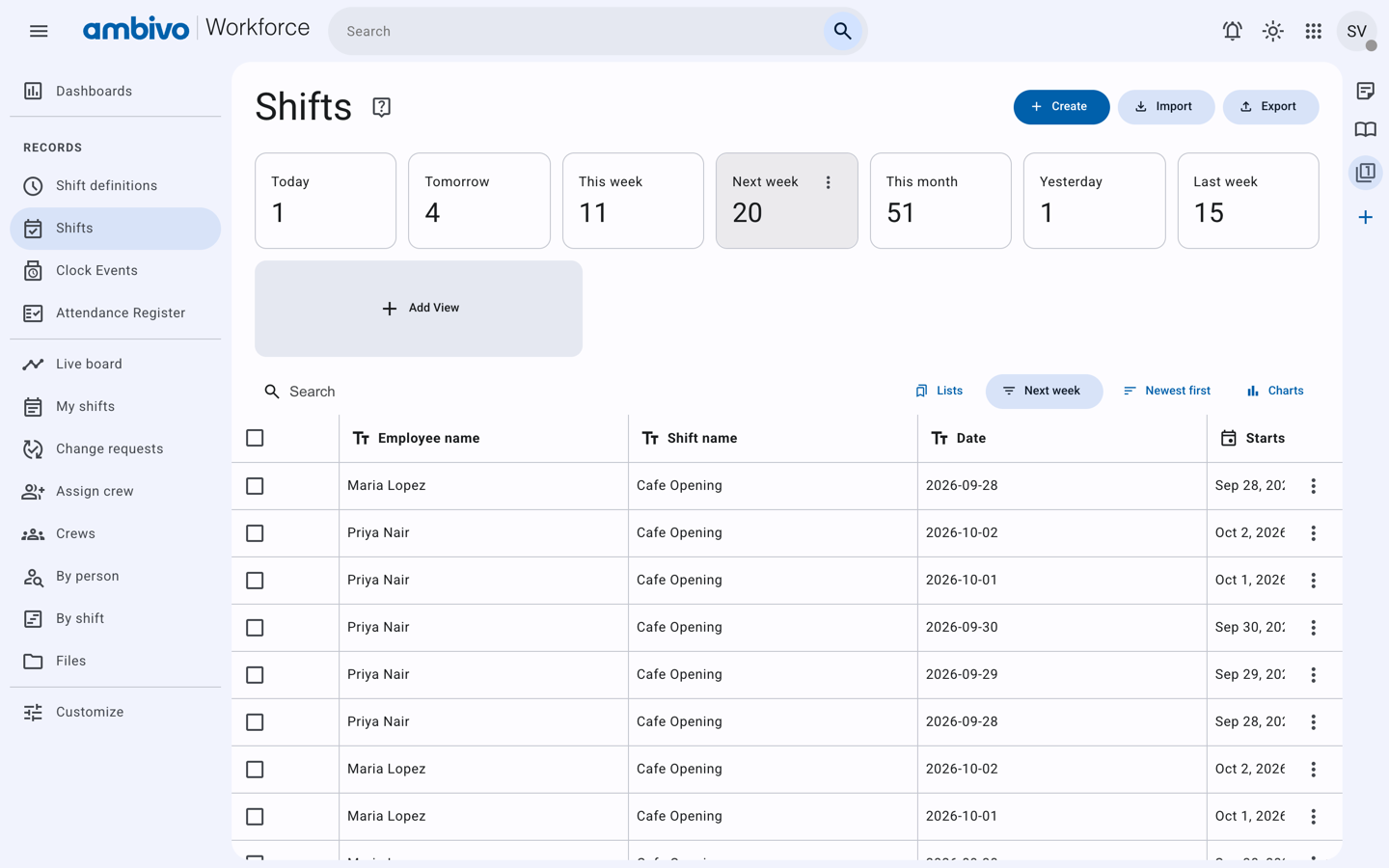
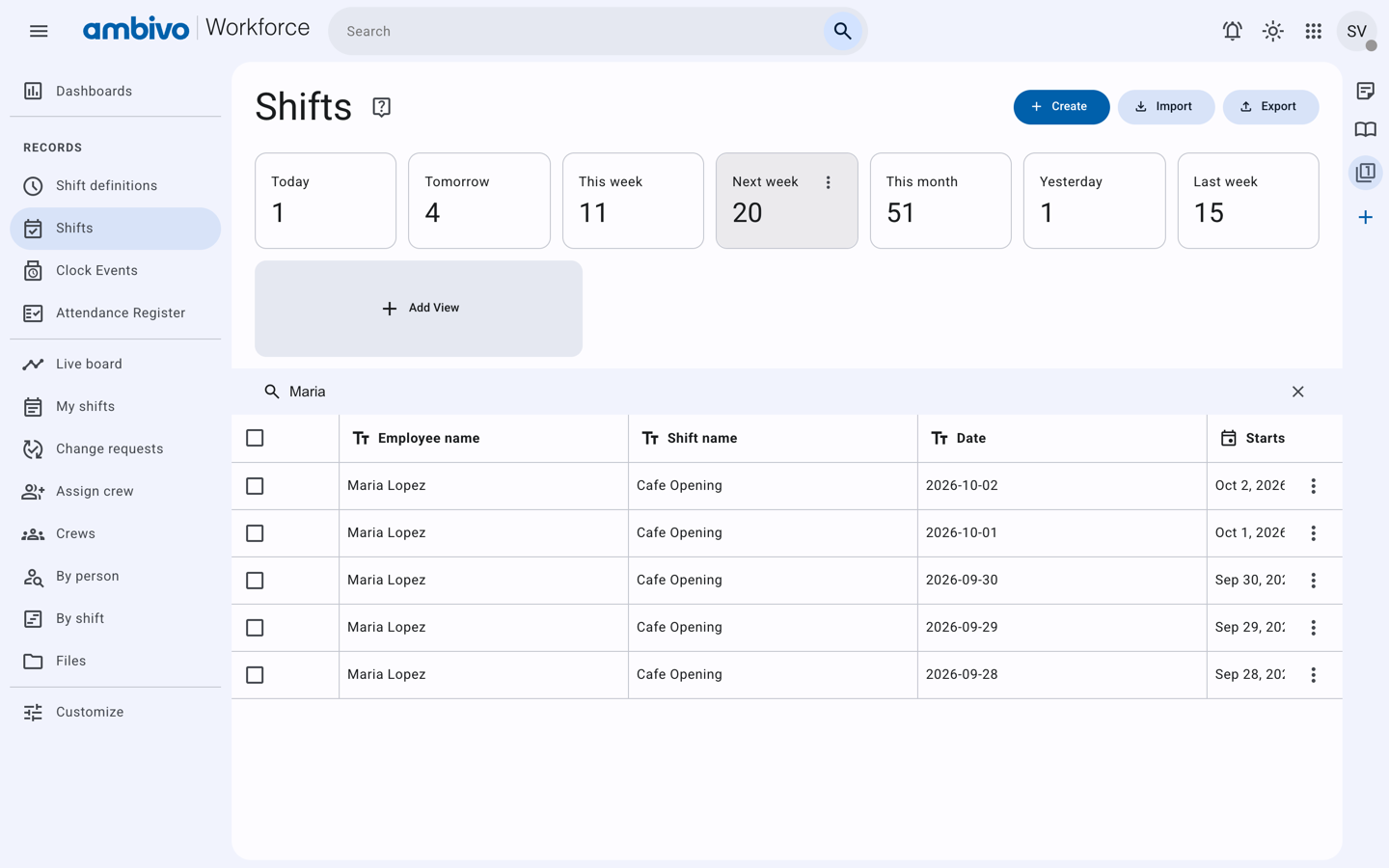
You see every shift at your sites, for everyone in your crews.
Change the start and end time
In our example, Maria's Wednesday moves from 06:00–14:00 to 07:00–15:00.
- On the row for 2026-09-30, click ⋮.
- Click Change times.
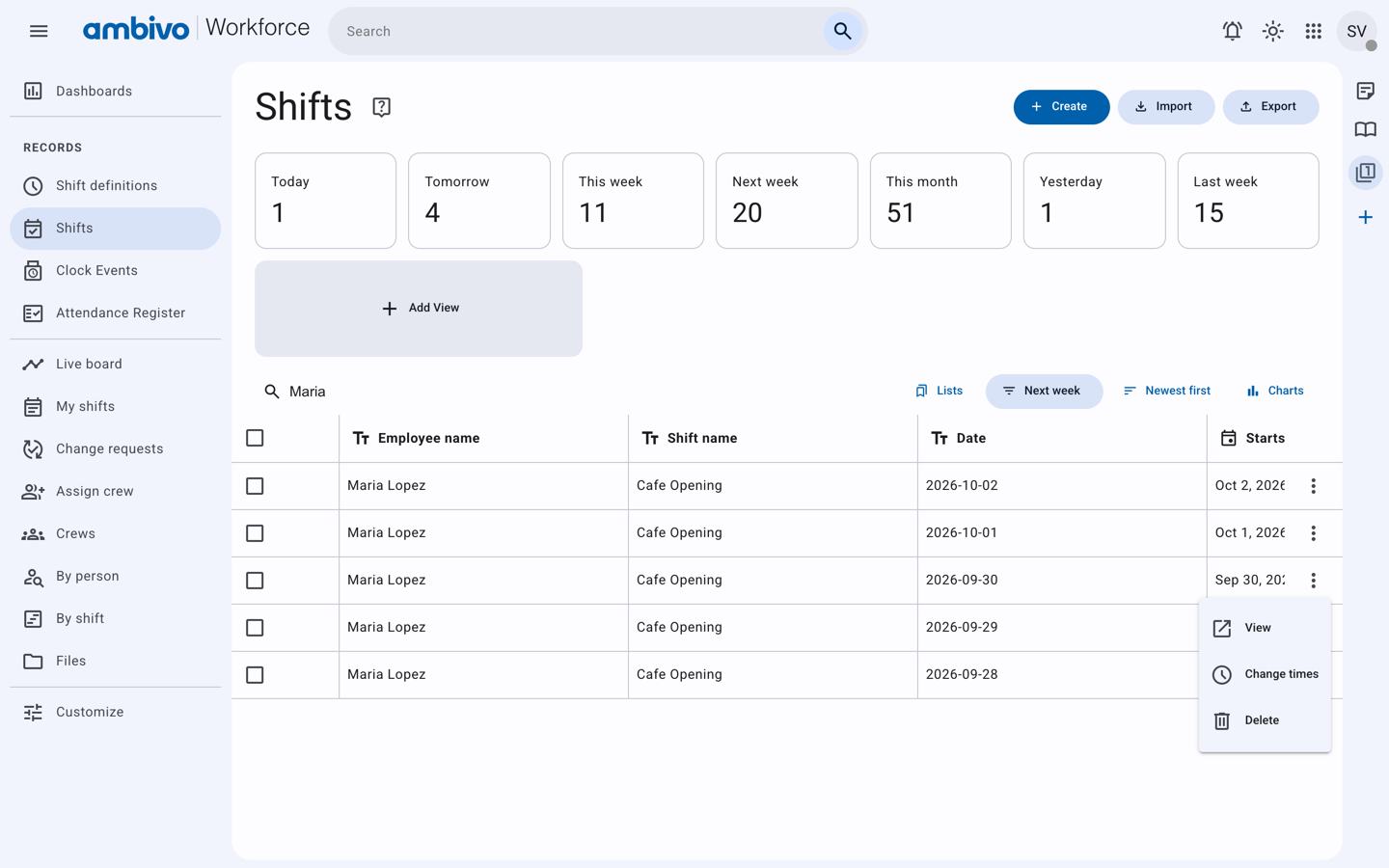
- Set Starts to 07:00 and Ends to 15:00.
- Click Save.
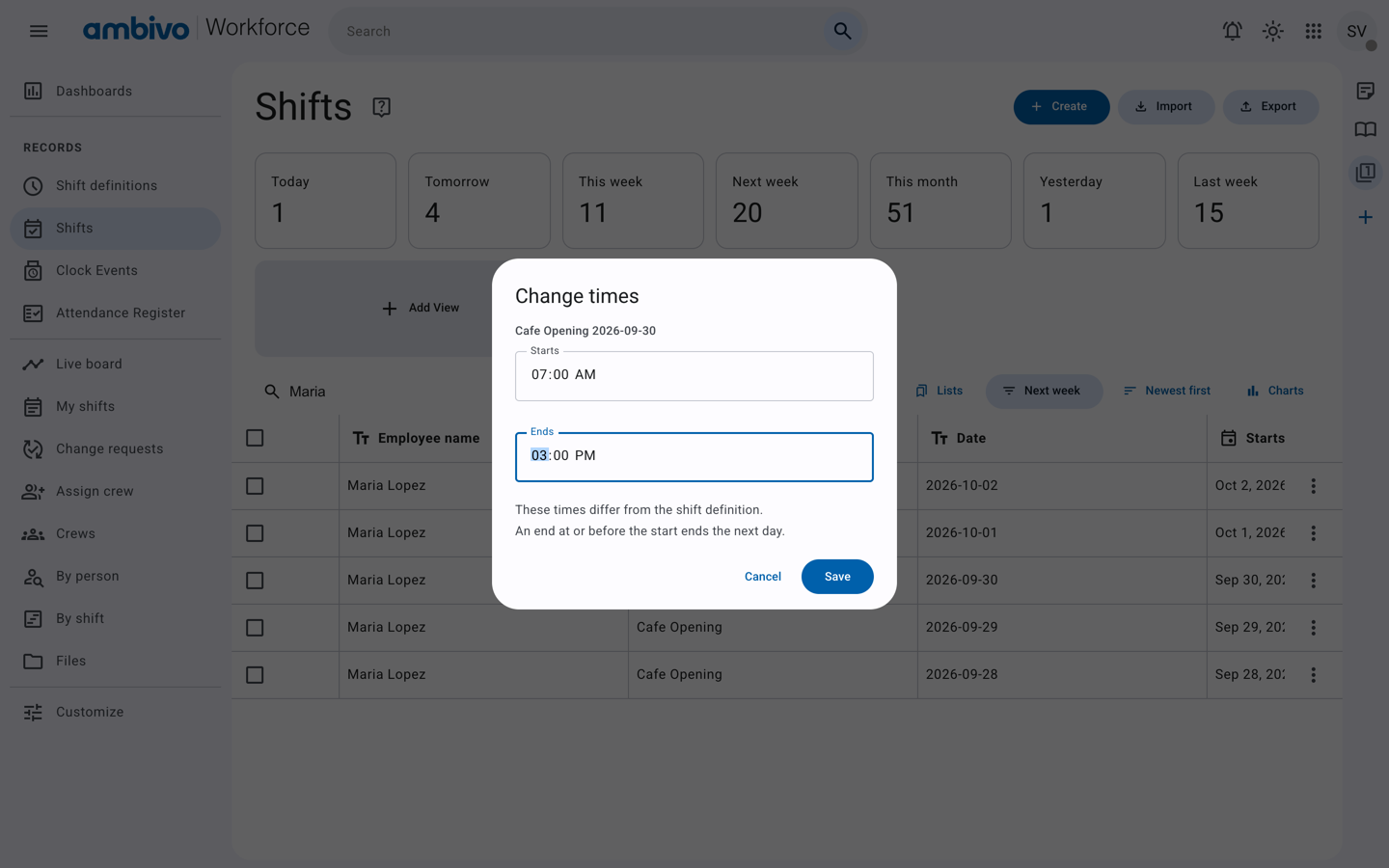
The page says Times saved. The row now shows 07:00 and 15:00.
An end at or before the start means the shift ends the next day.
Answer a change request
A crew member can ask to be taken off a shift. Chapter 7 shows how they ask. In our example, Crew Tester asks for Thursday 1 October off for a doctor appointment.
- In the menu, click Change requests. The list shows Pending requests first.
- Read the request. It says who, which shift, which date and why.
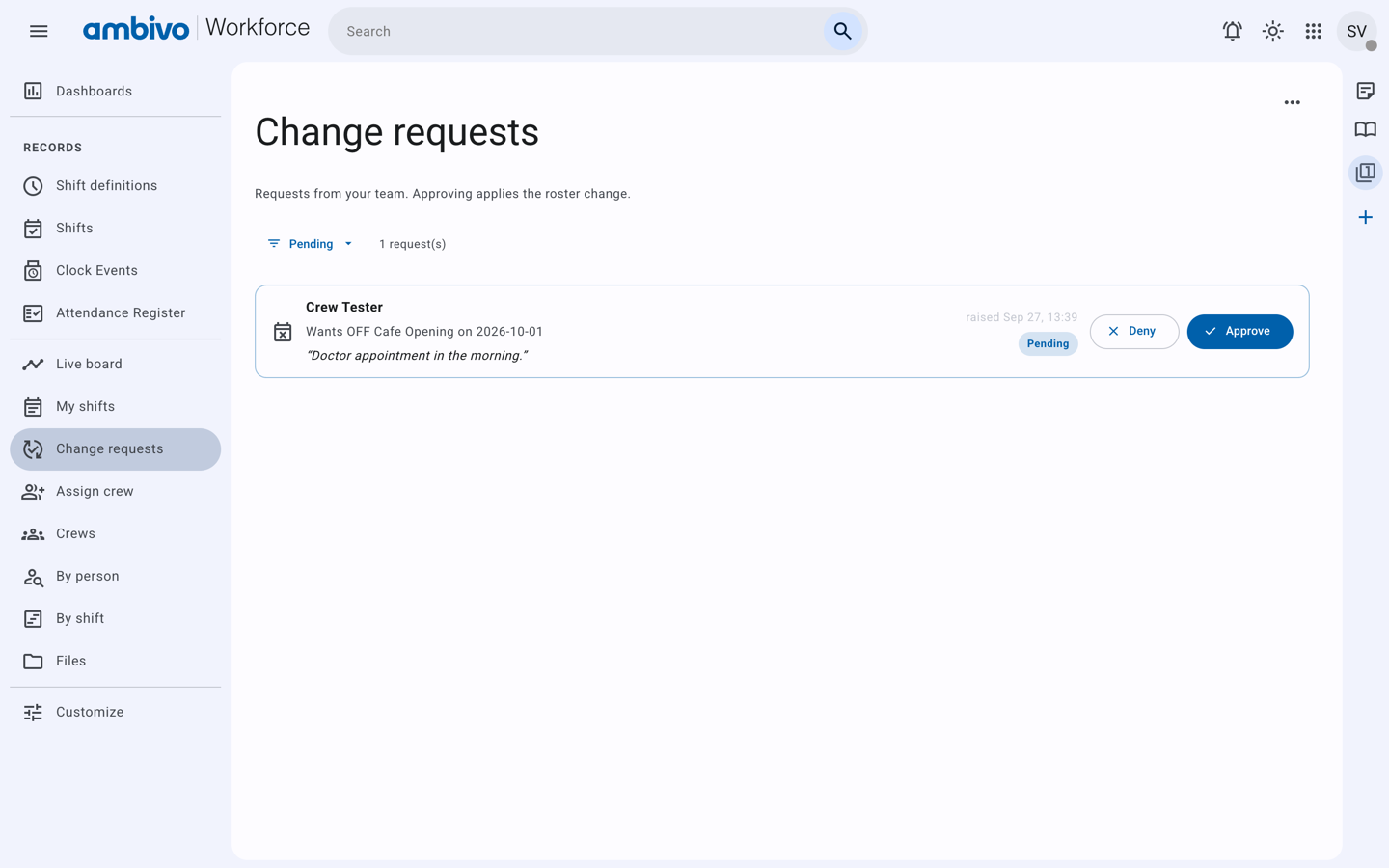
- Click Approve or Deny.
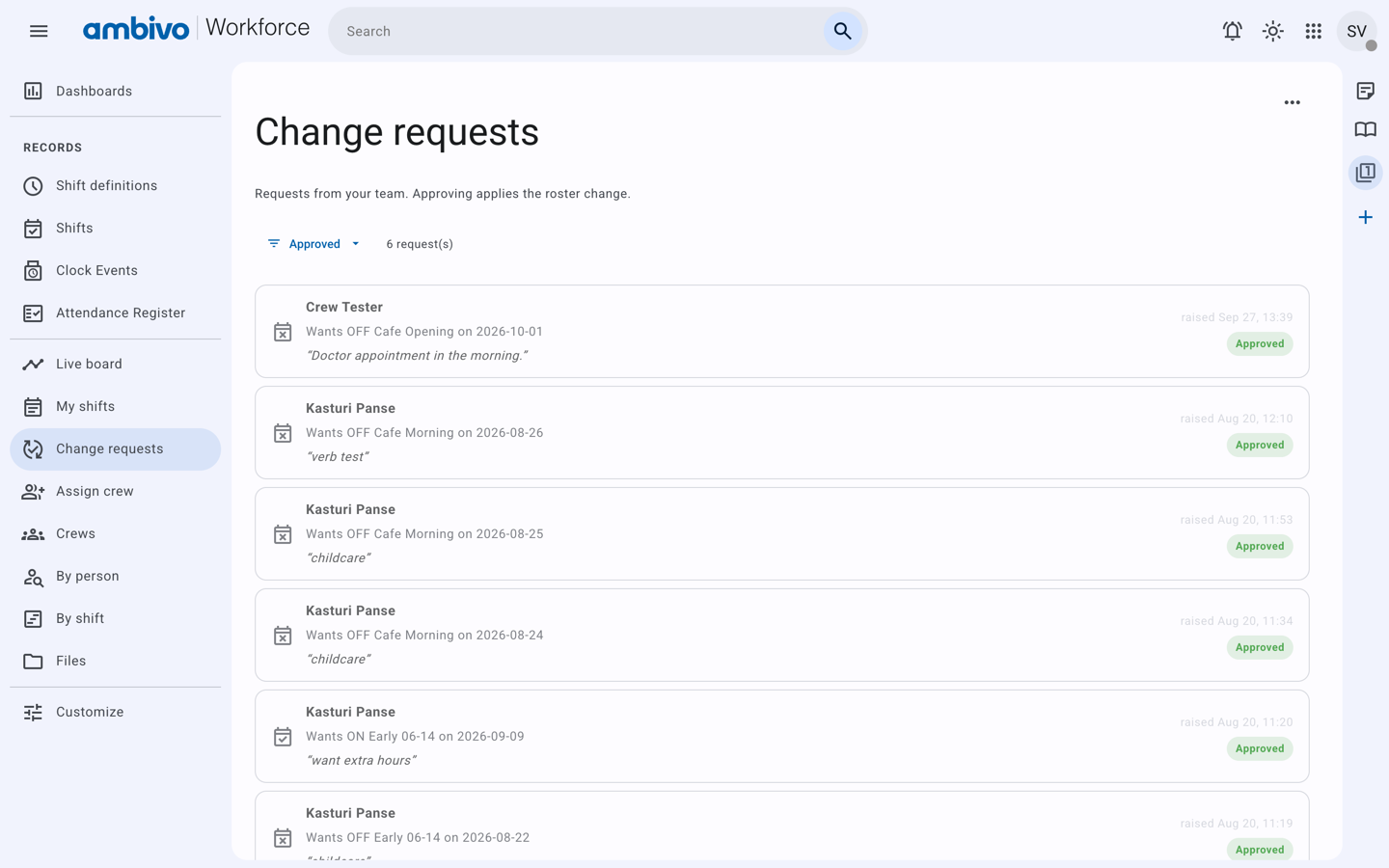
When you approve, Workforce cancels that shift straight away. The shift stays on the roster as Cancelled, so you can see who was meant to work it.
To see old requests, change Pending to Approved, Denied or All.
Check the week
By shift shows one shift definition day by day, with everyone on it.
- In the menu, click By shift.
- Choose your site and the shift definition. In our example, Downtown Cafe and Cafe Opening.
- Set From and To to the week you want.
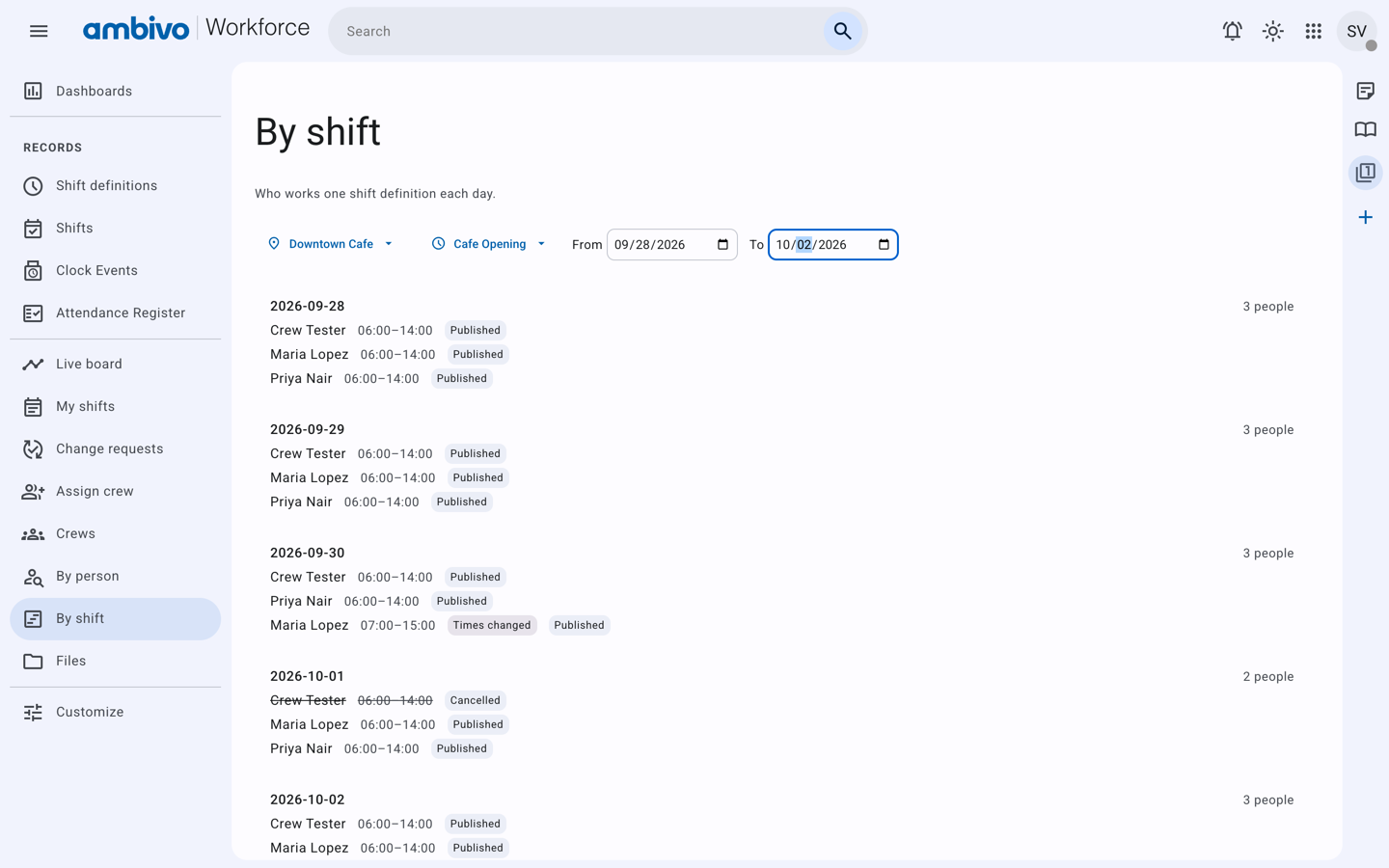
In our example:
- Wednesday shows Maria Lopez at 07:00–15:00 and Times changed.
- Thursday shows 2 people. Crew Tester is Cancelled.
Thursday is now one person short. To add someone, use Create on the Shifts page, or run Assign crew again for that day.
Remove a shift made by mistake
If a shift should never have existed, click ⋮ on its row and choose Delete. Use this only for mistakes. For time off, approve a change request instead. That keeps a record of who was meant to work.
On the phone
The Ambivo Workforce phone app can do more with a shift. A supervisor can cancel a shift with a reason and use Find cover to give it to someone else. See the full Workforce guide.
Next: 7. What Your Crew Sees
7. What Your Crew Sees
It helps to know what your crew sees, so you can answer their questions. This chapter signs in as Crew Tester, the lead of Morning crew.
A crew member's menu is shorter. It has no Assign crew, Crews, By person or By shift.
On the phone app
Crew who use the Ambivo Workforce phone app get two more things:
- My badge to clock in at a shared terminal.
- Shift reminders 60 minutes before each shift. On Android, they can also set a phone alarm.
Chapter 1 has the download link.
My shifts
A crew member opens My shifts. It lists their shifts day by day, with the time and the site.
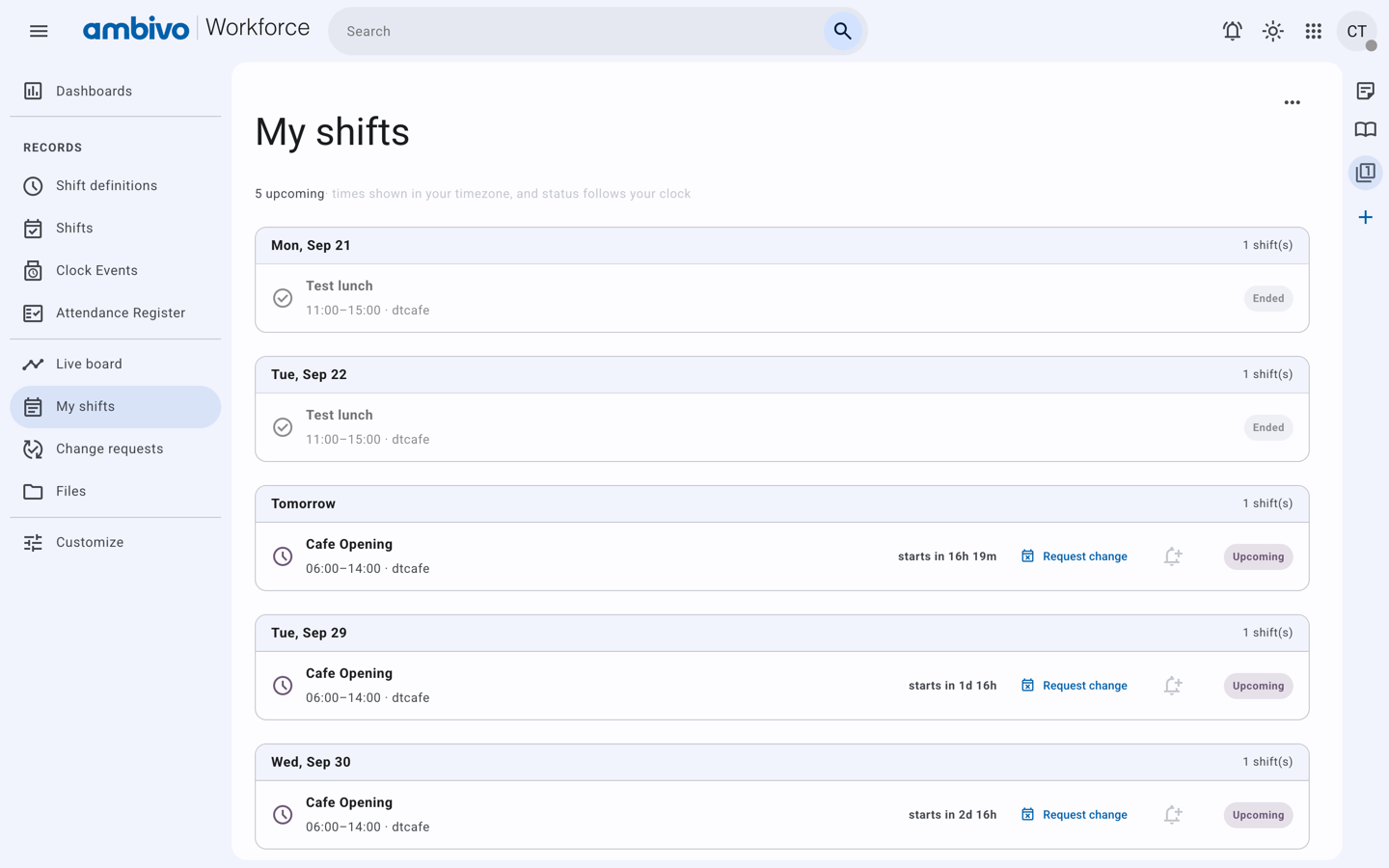
- Only published shifts show here. Drafts stay hidden until you publish.
- Each coming shift says when it starts, for example starts in 1d 17h.
- A shift that is over says Ended.
Asking to be taken off a shift
A crew member can click Request change on a coming shift.
- The browser asks why they need the shift off. For example: "Why do you need off Cafe Opening on 2026-10-01? Your manager will see this."
- They type a reason and click OK.
- The shift now shows Change requested.
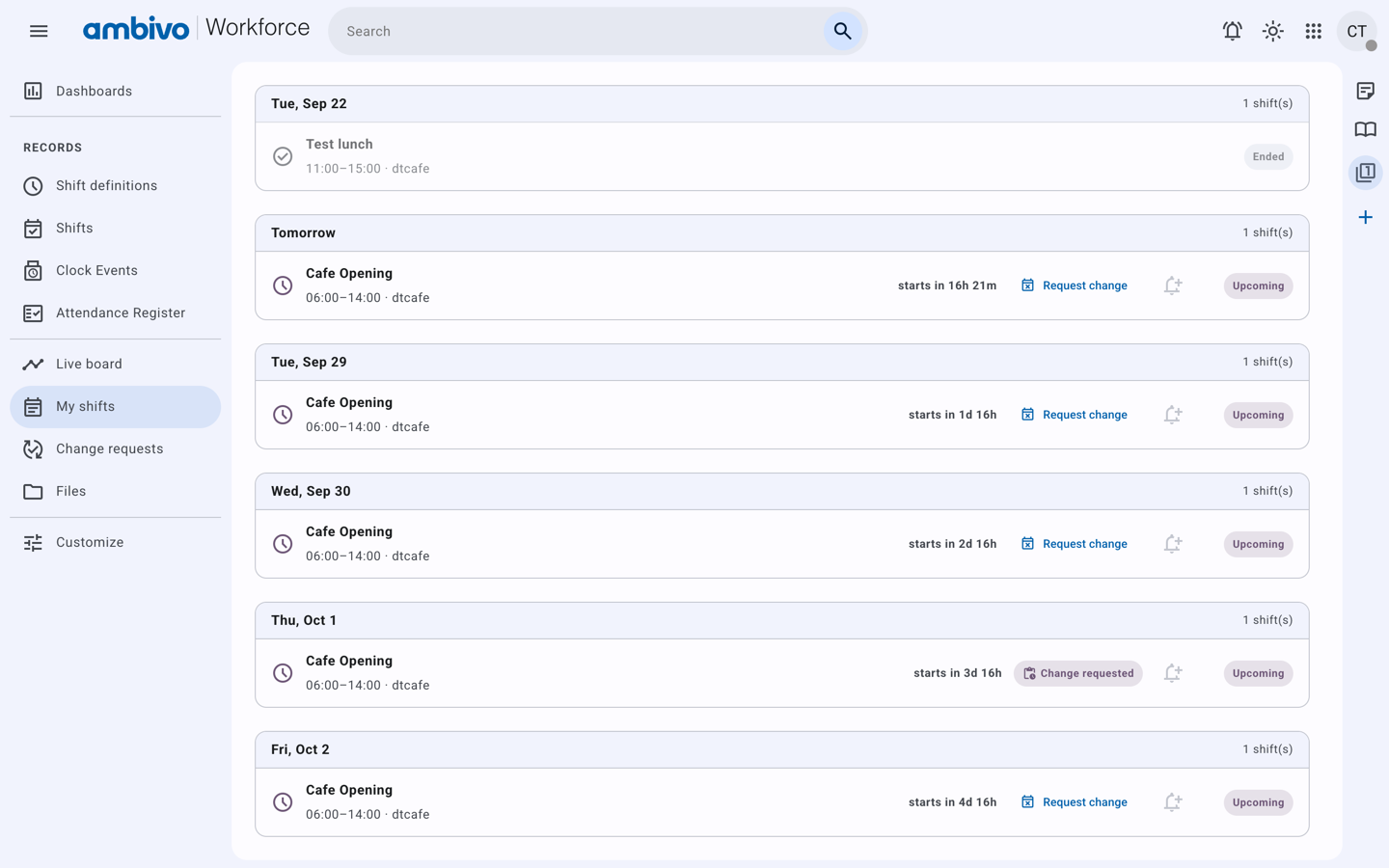
The shift stays on the roster until you answer. Chapter 6 shows how to answer.
Guests
A guest signs in at workforce.ambivo.com with the email and password from Chapter 2. They see the same My shifts page.
In our example, Maria signs in as guest1@gosain.org. Her Wednesday shows the new time, 07:00–15:00, marked Times changed.
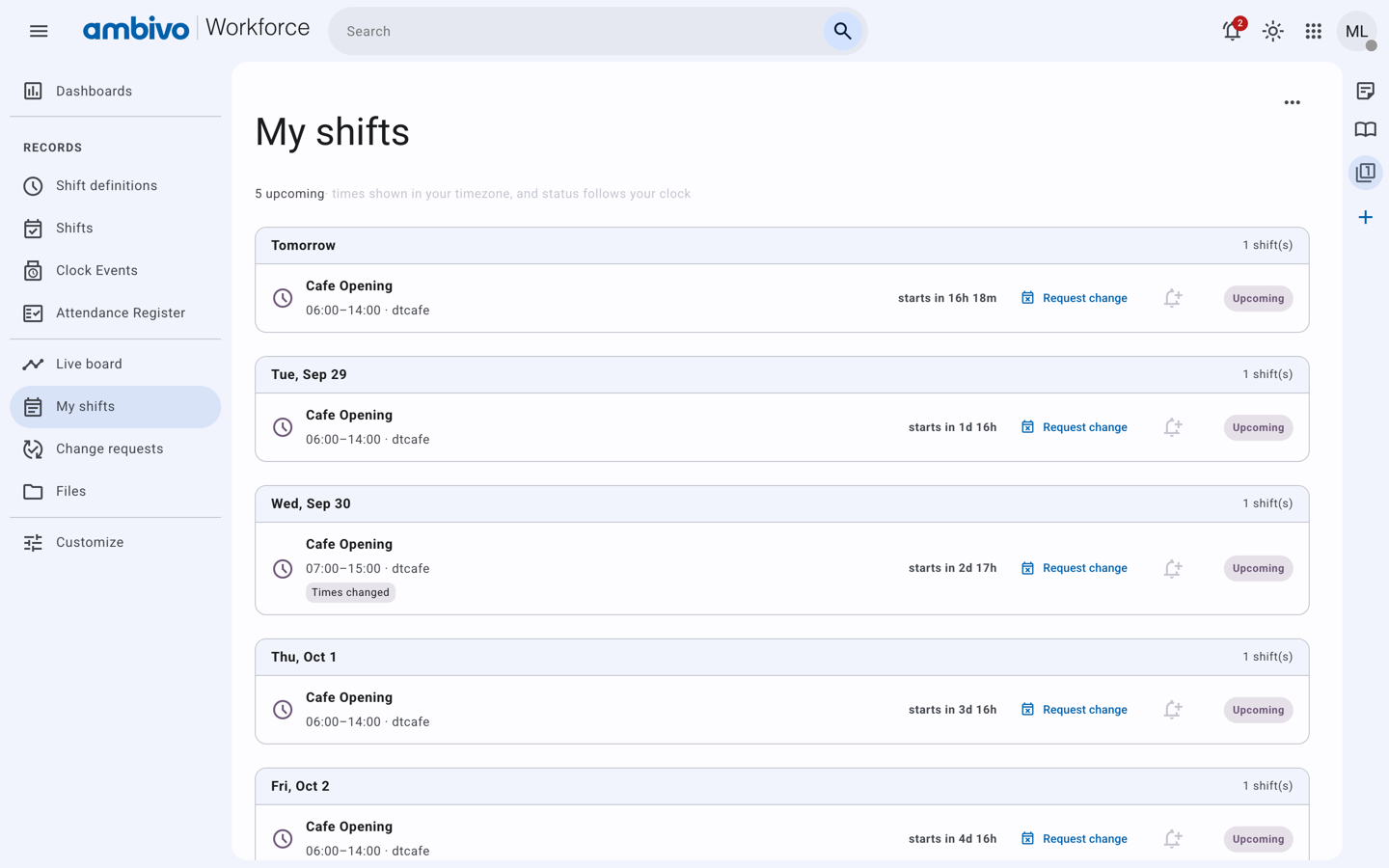
If a guest does not sign in, tell them their shifts in person.
You finished the course
You can now:
- Sign in and find your way around Workforce.
- Ask your admin to add guests.
- Set up a shift definition.
- Build a crew.
- Put the crew on shifts for a week, and publish them.
- Change a shift and answer a change request.
The full Workforce guide covers clocking in, the Live board and the Attendance Register. Open it from the book icon at the top right.